Inviting users to the platform
How to invite new user accounts to the platform
How to invite a new user to the platform
Note: Users must have a user role with "Manage organisation settings" permission enabled in order to manually invite users to the platform.
1. Select users from the left-hand side menu
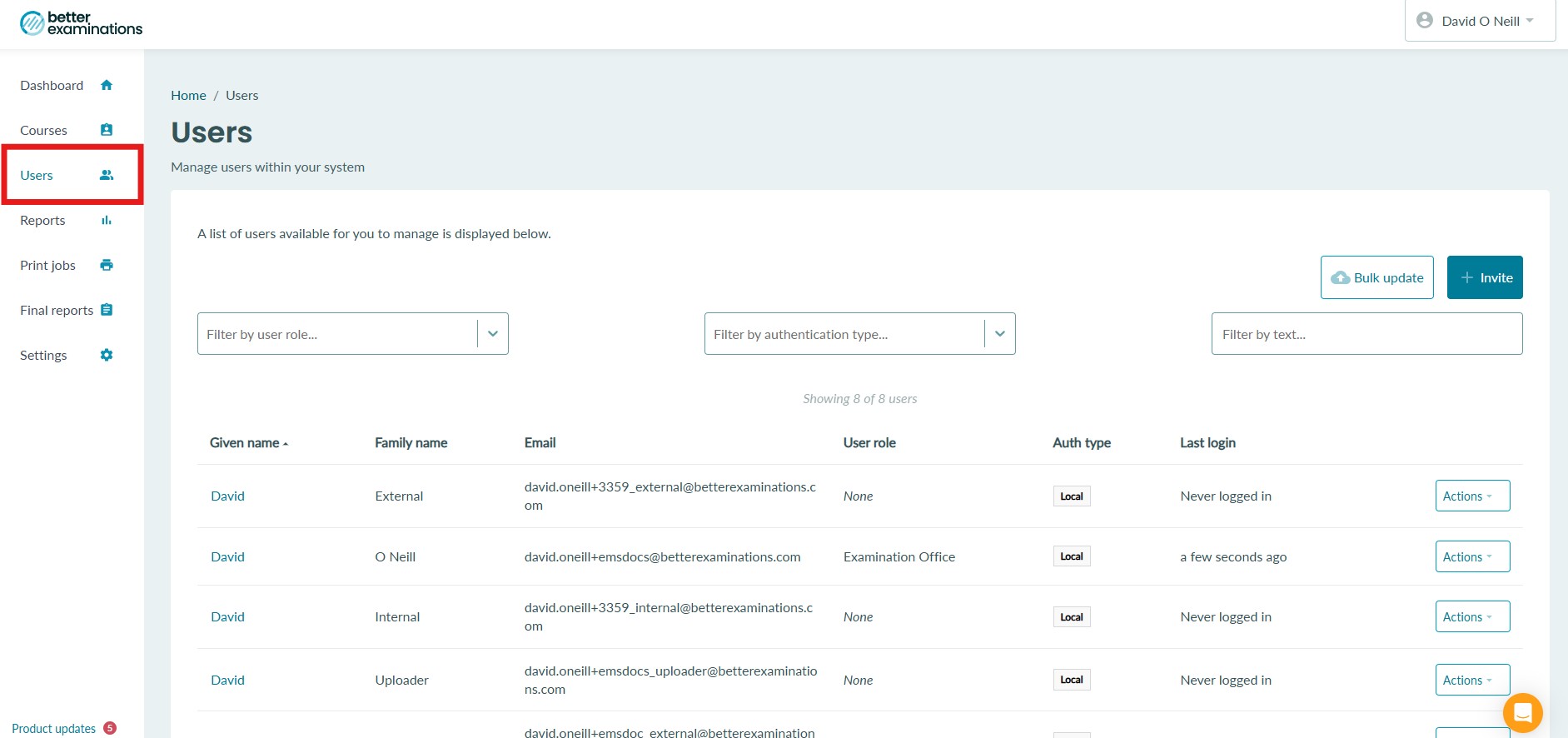
2. Here you will see all of the existing users who have accounts. To invite a new user, select the invite button on the top right-hand side 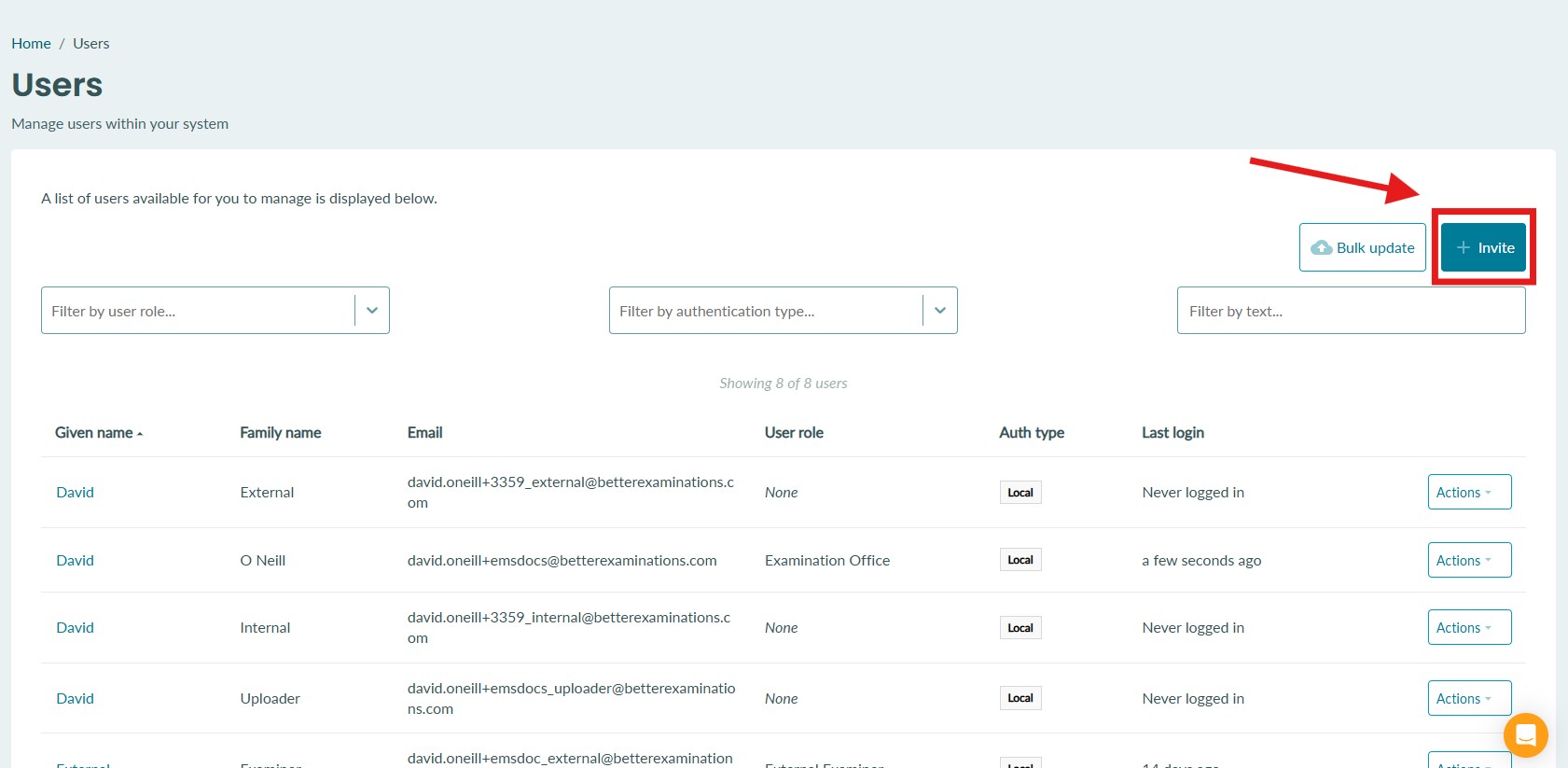
3. Enter the email address, given name, and family name for the new user
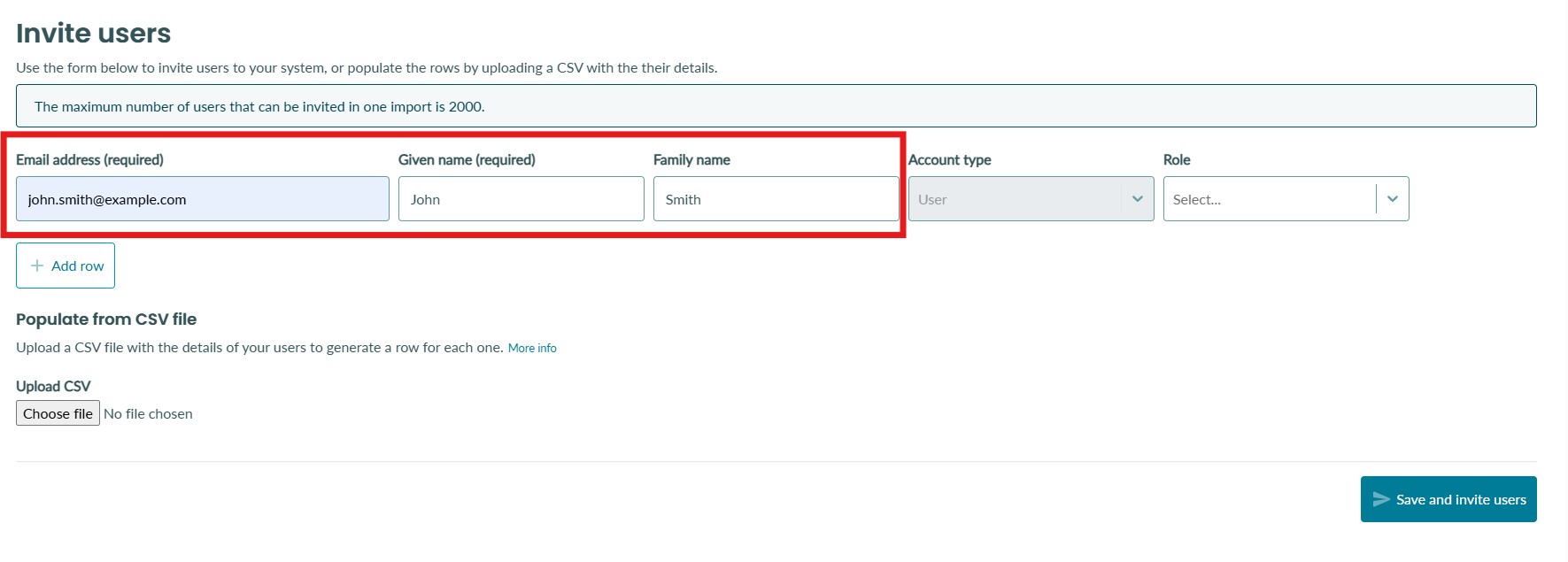
4. If you are inviting an administrator or someone who requires a user role, you can select the user role you want to assign them. The user role is not required. 
5. If you want to invite a second user, you can select 'Add row'. A new row will appear to add a second email address etc. 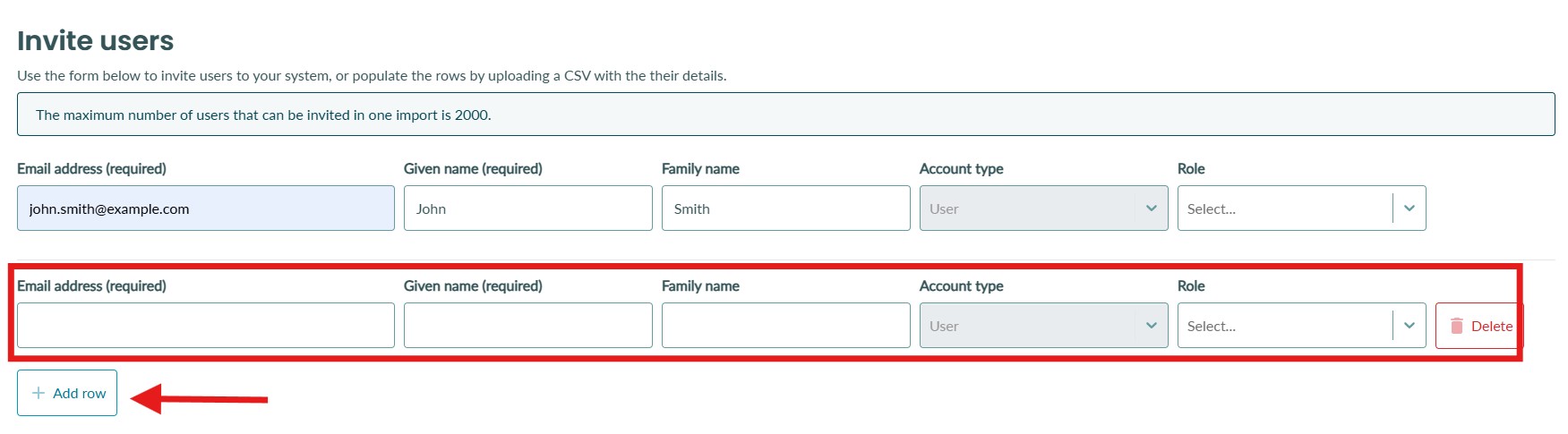
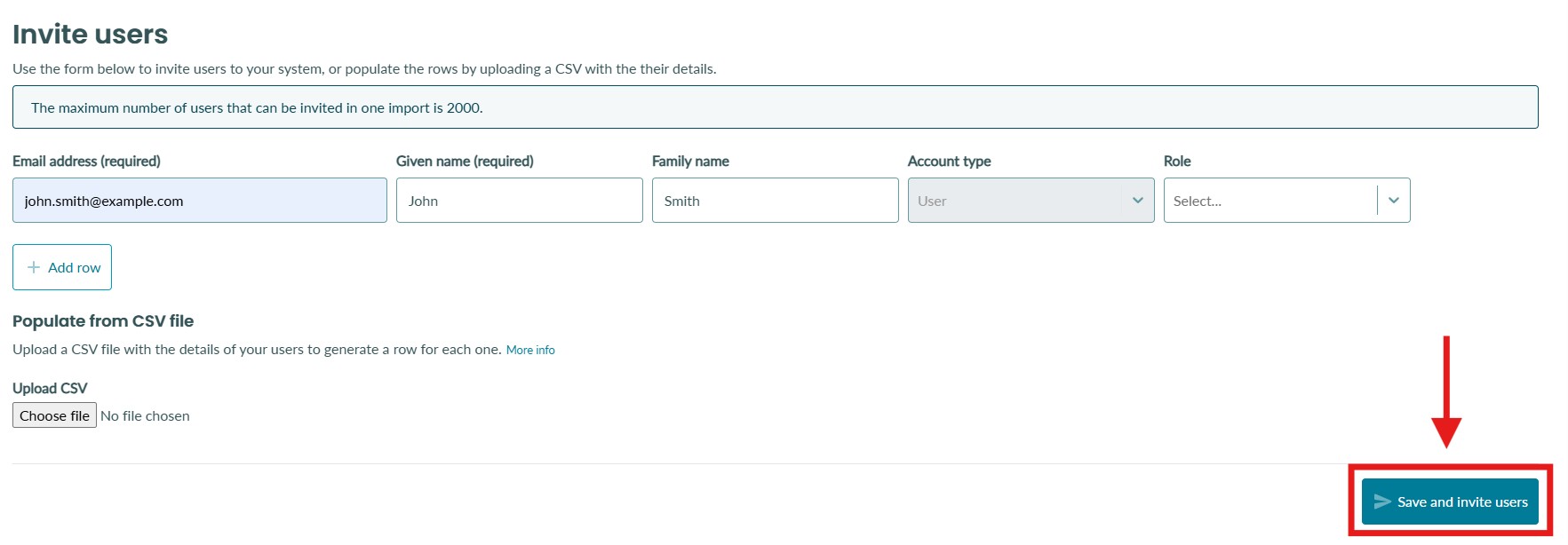
6. Once you're ready, select 'Save and invite users' in the bottom right
7. You will see a success message appear in the bottom left of the screen
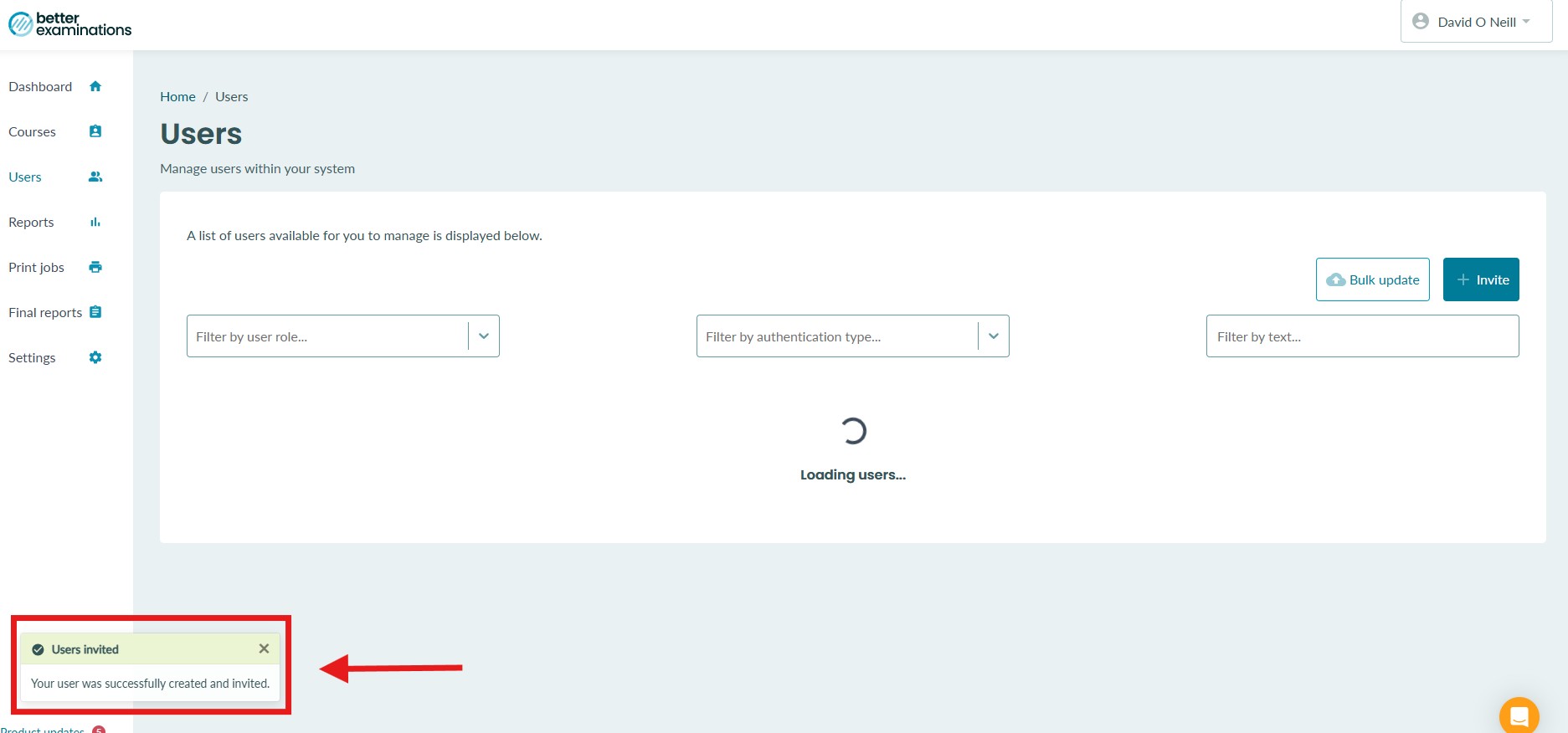
8. The invited user will now appear in the users list

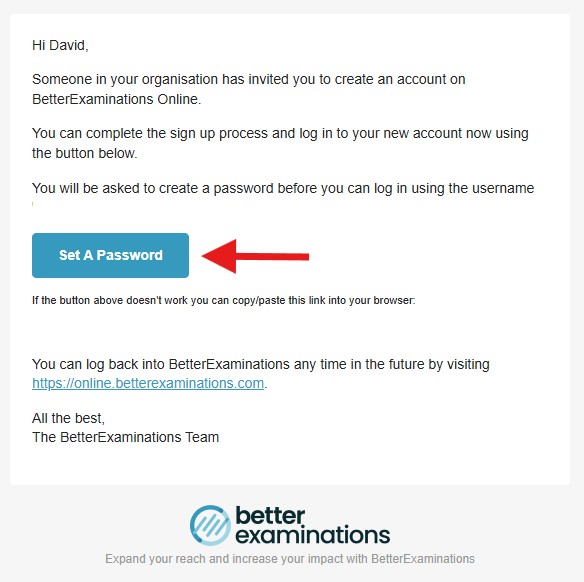
9. The invited user will receive an invitation email to setup their account. They must follow the link in the email to setup a password.