
Managing deadlines
How to manage deadlines for documents
Managing Deadlines for Exam Document Sets
Deadlines help ensure that exam documents are submitted and approved on time. There are two types of deadlines available, and they can be set either on an individual exam document set or across multiple exam document sets at once.
Deadline Types
Upload Required Documents deadline - Sets a date and time by which all required documents must be uploaded. You can optionally prevent any further uploads once this deadline has passed (note: users will still be able to create new versions of documents that have already been uploaded).
Approved for Printing deadline - Sets a date and time by which documents must be approved and ready for printing.
Permissions
Managing deadlines required the user to have specific permission to add/remove deadlines. 
Setting Deadlines on an Individual Exam Document Set
-
Navigate to the exam document set you want to manage and open the Deadlines tab.
-
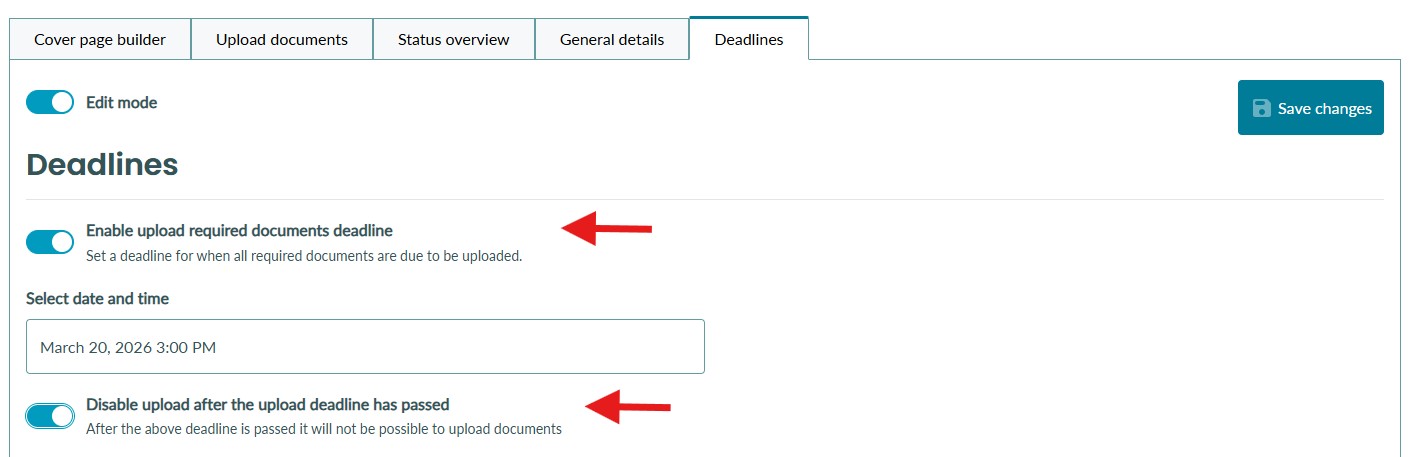
Toggle on Enable upload required documents deadline to set an upload deadline, then select a date and time from the date picker.
-
Optionally, toggle on Disable upload after the upload deadline has passed to prevent new uploads once the deadline is reached. Any folders excluded from this restriction will be noted in the toggle description.
-
-
Toggle on Enable approved for printing deadline to set a printing deadline, then select a date and time.

-
When finished, click Save changes.
Bulk Managing Deadlines
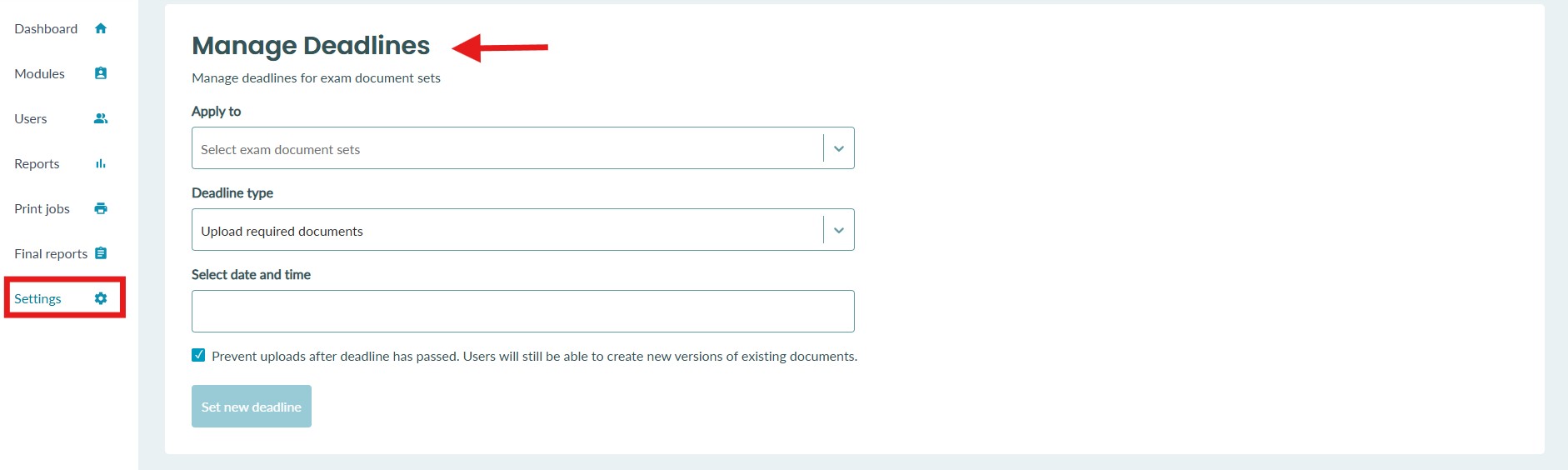
The Manage Deadlines section on the settings page allows you to apply a deadline to multiple exam document sets at once.
-
Navigate to the Manage Deadlines section on the settings page.
-
Under Apply to, select the exam document sets you want to update. You can search and select individual document sets, or choose All Document Sets to apply the deadline to every document set across all courses.
-
Under Deadline type, choose either Upload required documents or Approved for printing.
-
Select a date and time for the new deadline.
-
If you selected the Upload required documents deadline type, you can check Prevent uploads after deadline has passed to lock uploads once the deadline is reached. Any folders excluded from this rule will be listed in the checkbox label.
-
Click Set new deadline.
-
A confirmation prompt will appear showing the deadline being set and the number of document sets that will be affected. Review the details and confirm.
Important: Any existing deadlines of the selected type on the chosen document sets will be overwritten by the new deadline
Deadline reminders
Dashboard reminder
Users will see upcoming deadlines that apply to them appear on their dashboard. They can see the deadline date and which exam document sets the deadline applies to. 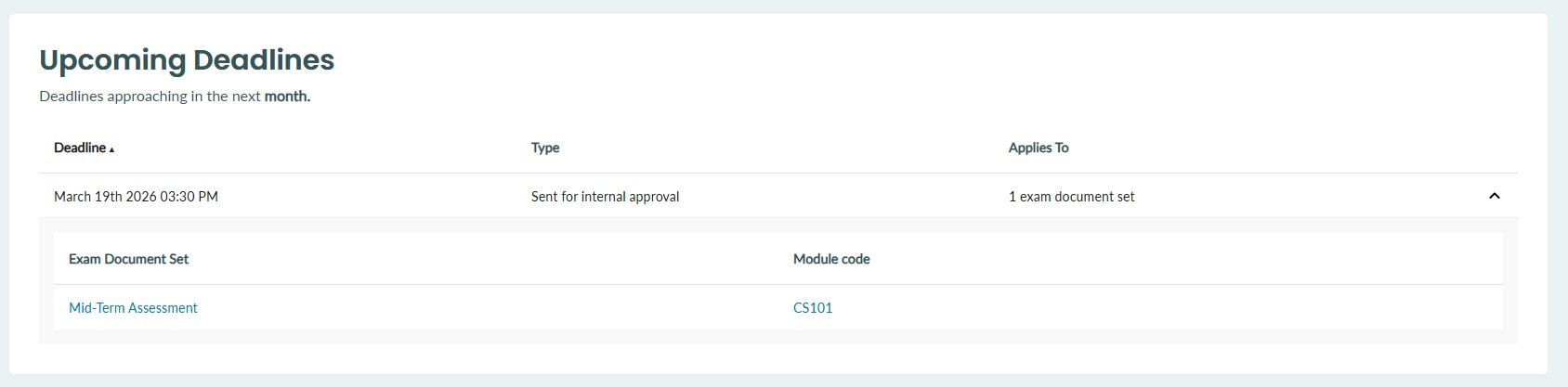
Email reminders
We can configure email reminders to be sent to users assigned to courses/modules with specific roles.
For example, you may wish to send reminder emails 1 week, 4 days, and 1 day before a deadline to remind users that the deadline is approaching.
This configuration can be discussed with your Customer Success Manager at any time.