Assigning users to courses and managing course roles
How to assign users to a course with a course role
Users are assigned to specific courses and can be assigned a course role. Course roles are a set of permissions assigned to users within a course that allow them to carry out tasks within that course. Users can have different course roles in each of the courses they are assigned to.
User roles can be used to assign different permissions to users across the entire BetterExaminations platform.
Course Roles can only be managed by Users who have "Manage organisation settings" enabled.
To manage Course roles, go to Settings.
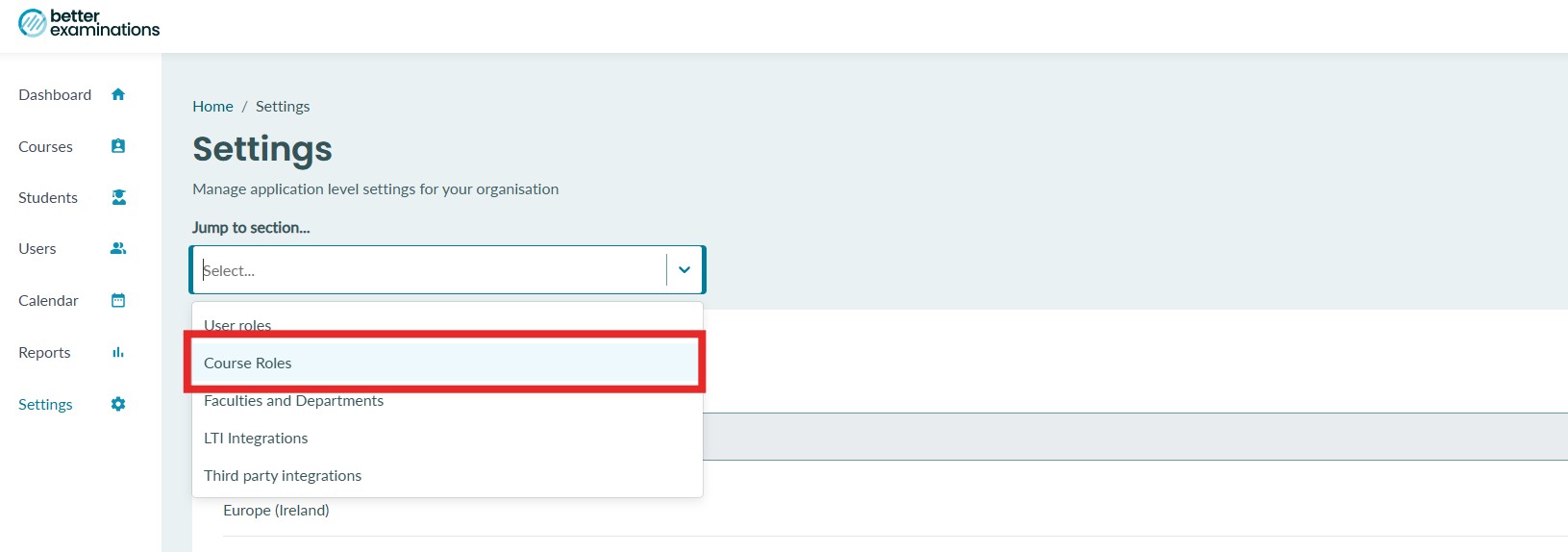
The course roles section lists the existing roles and gives you the option to manage each role.
Create a new course role
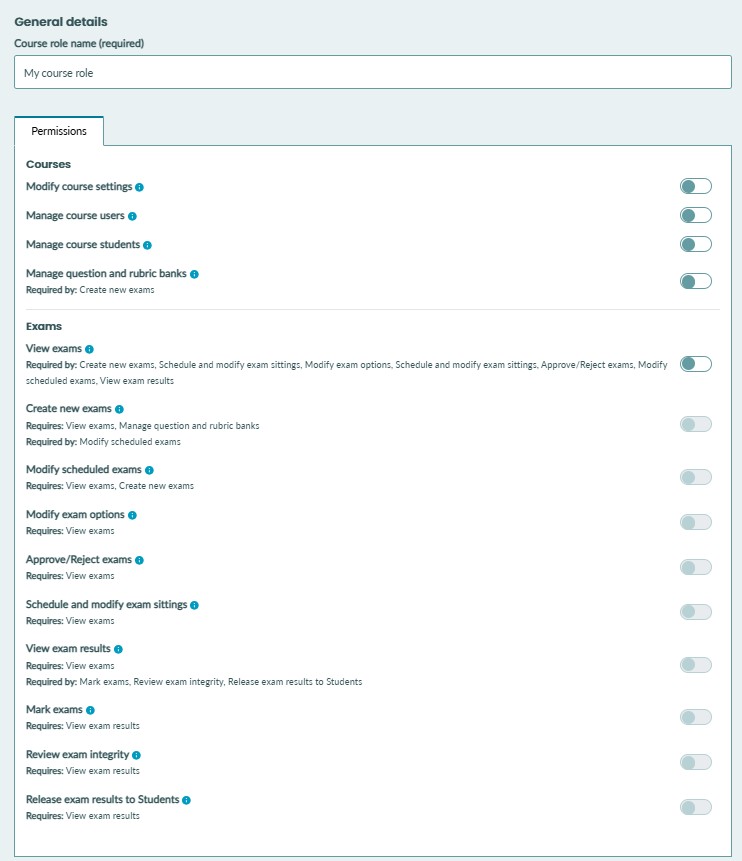
To create a new course role, select +Create course role to display the Edit role window, where you can name your course role:
Manage an existing course role
To manage an existing role, select the course role name or the manage button to show the edit role window.

Course role permissions
| Permission | Description/Notes | Area of application | Dependencies |
|---|---|---|---|
|
Modify course settings |
This permission gives users access to some specific settings within a course. This permission can be combined with other course-level permissions to give the user a slighter higher level of access (Like a course administrator, for example) With this permission, access is given to
|
|
N/A |
|
Manage course users |
This permission gives the user access to the list of assigned users on a course. |
|
Must be combined with the user-level permission 'View all users' if you want the user to be able to assign new users to the course. This permission alone only allows access to the list of currently assigned users to the course. |
|
Manage course students |
This permission gives the user access to the list of assigned students in a course. This list reveals students' identities (Name, Email, Global ID), so it's important to control access to this page. |
|
Must be combined with the user-level permission 'View all students' if you want the user to be able to assign new students to the course. This permission alone only allows access to the list of currently assigned students to the course. |
| Manage question and rubric banks |
Provides access to the question bank and rubrics inside a course. |
|
N/A |
| View exams | Provides the permission to view existing exams and exam sittings. They can see exam content but not edit it. They can also click into and see some information for exam sittings |
|
N/A |
| Create new exams | Provides the permission to create new exams and edit them before an exam sitting has been scheduled User can send exams for approval |
|
Requires
|
|
Modify scheduled exams |
Provides the permission to continue to modify exams after an exam sitting has been scheduled. |
|
Requires
|
| Modify exam options | Provides permission to modify exam options in the exam options tab. This includes things like enabling blind marking or question-level feedback. |
|
Requires
|
| Schedule exam sittings | Provides the permission to schedule sittings of approved exams |
|
Requires
|
|
Approve/Reject exams |
Provides the permission to approve an exam that has been sent for approval Note: Explicit rejection of exams is not available at this moment. |
|
Requires
|
|
View exam results |
Provides access to the submissions list to view the results of exams and export those results as CSV |
|
Requires
|
|
Mark exams |
Provides the permission to mark exams and provide feedback to students. |
|
Requires
|
|
Review exam integrity |
This gives the user access to two primary things
|
|
Requires
|
|
Release exam results to Students |
Provides the permission to release results to students |
|
Requires
|
Assigning one or more users to a specific course
Note: You must have permission to "Manage course users" in order to assign users to a course.
By navigating to a specific course, you can choose which users are assigned to that course and which role they have.
1. Navigate to the course and select Users from the sub-navigation menu. Toggle Modify users. 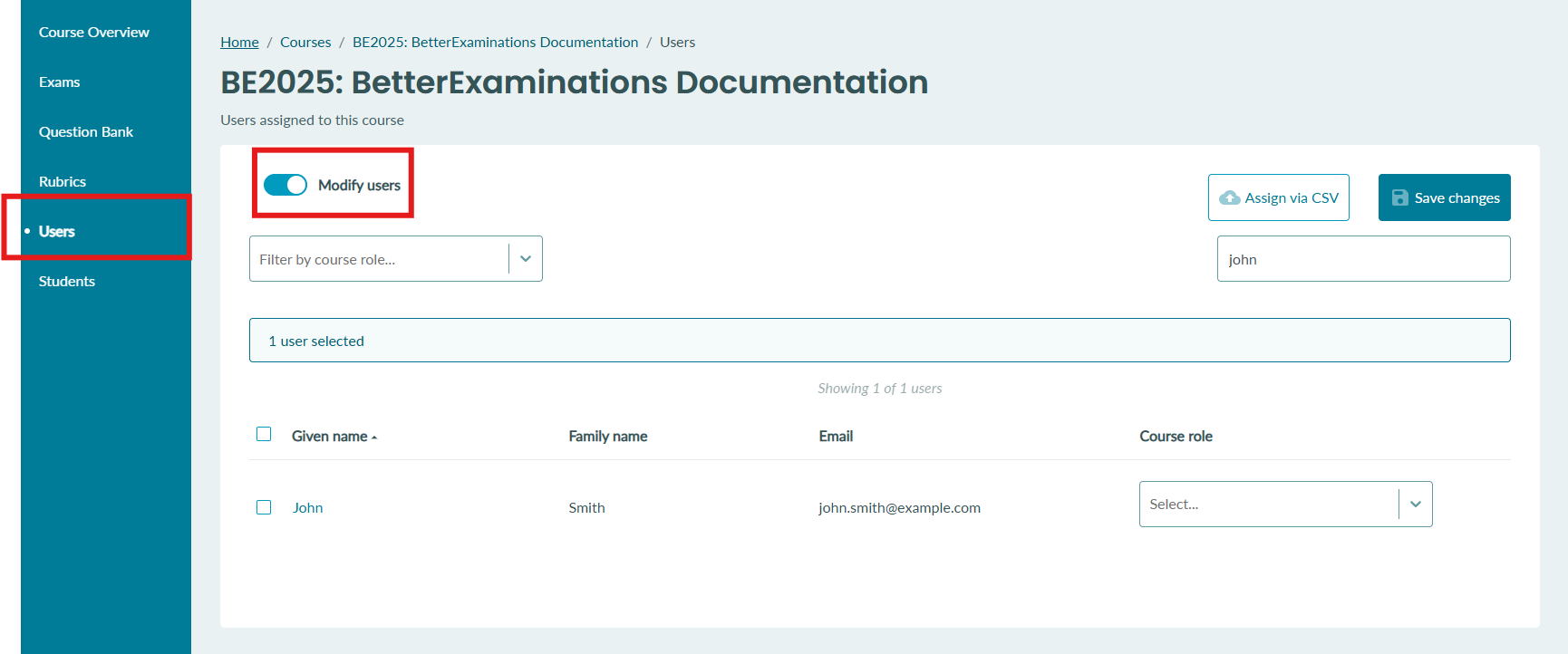
2. Select the user(s) you want to assign to the course and select a role from the dropdown

3. Select "Save Changes" in the top, right hand side of the table.
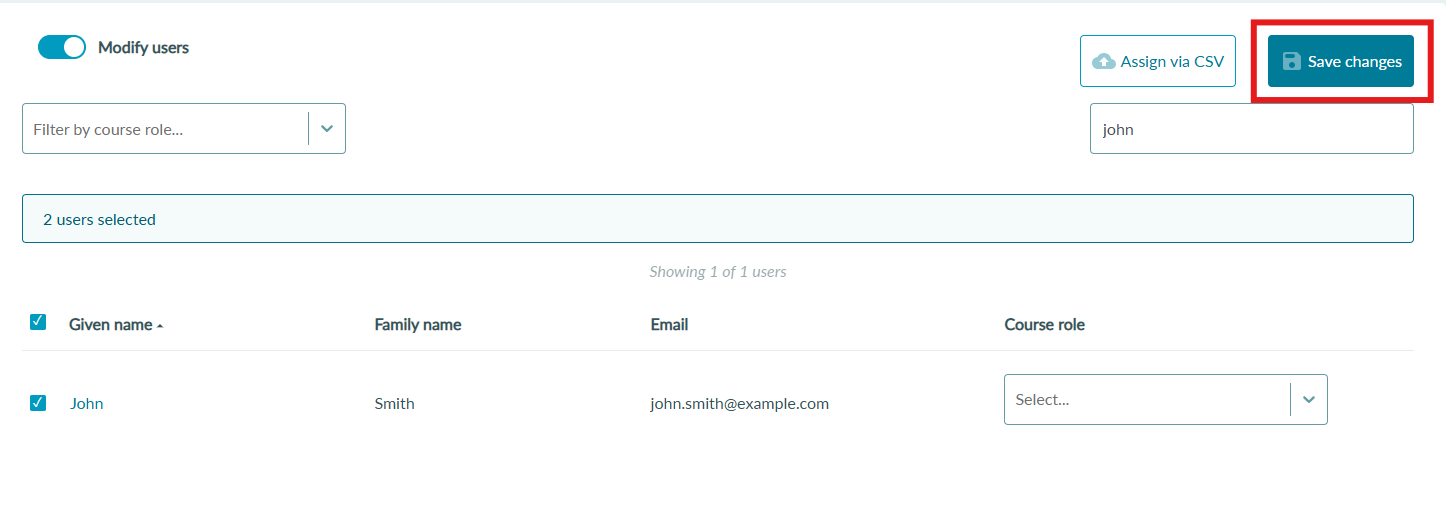
4. The user(s) will now be assigned to that course with the selected role.
Assigning a specific user to one or more courses
If you need to assign a specific user to multiple courses, instead of navigating to each individual course, you can manage that user's course assignment from the user list.
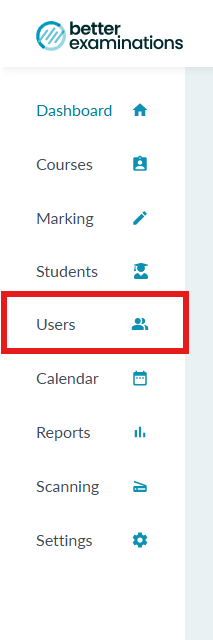
1. Select 'Users' from the left hand side menu
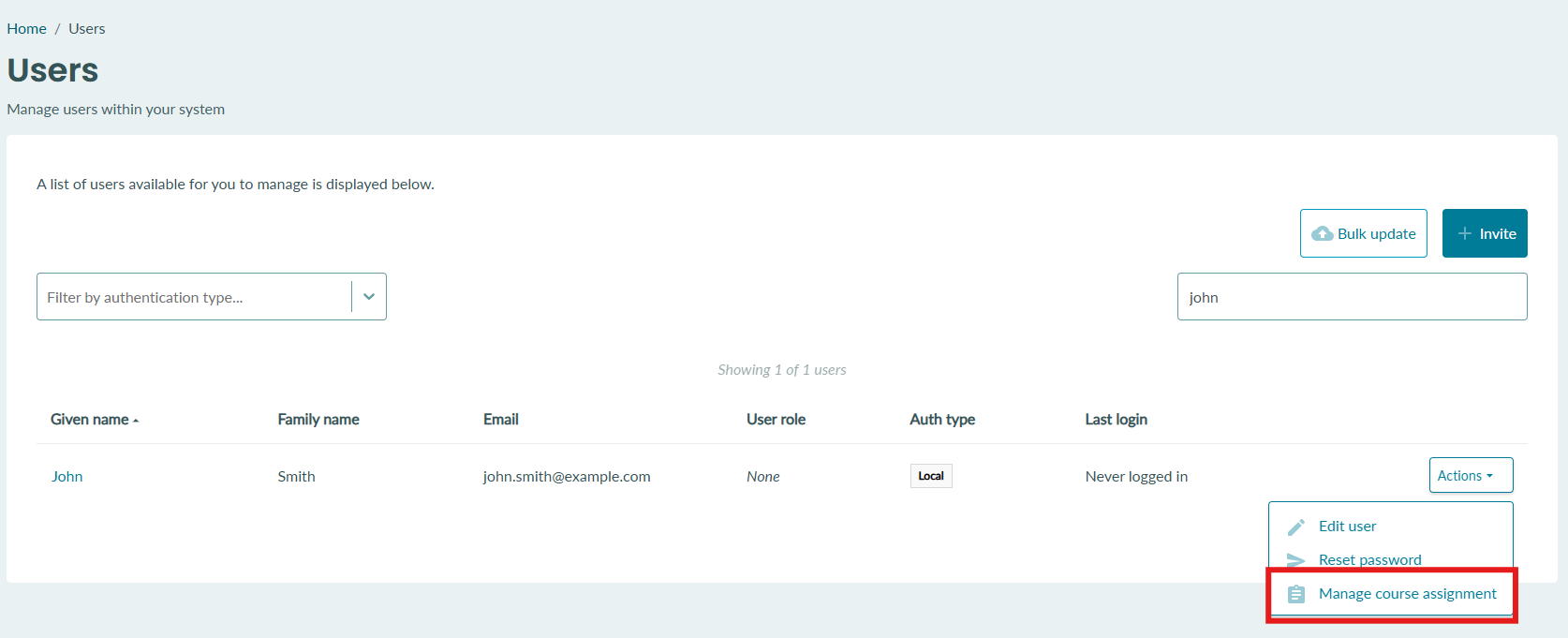
2. Find the user select the 'actions' button and select 'Manage course assignment'
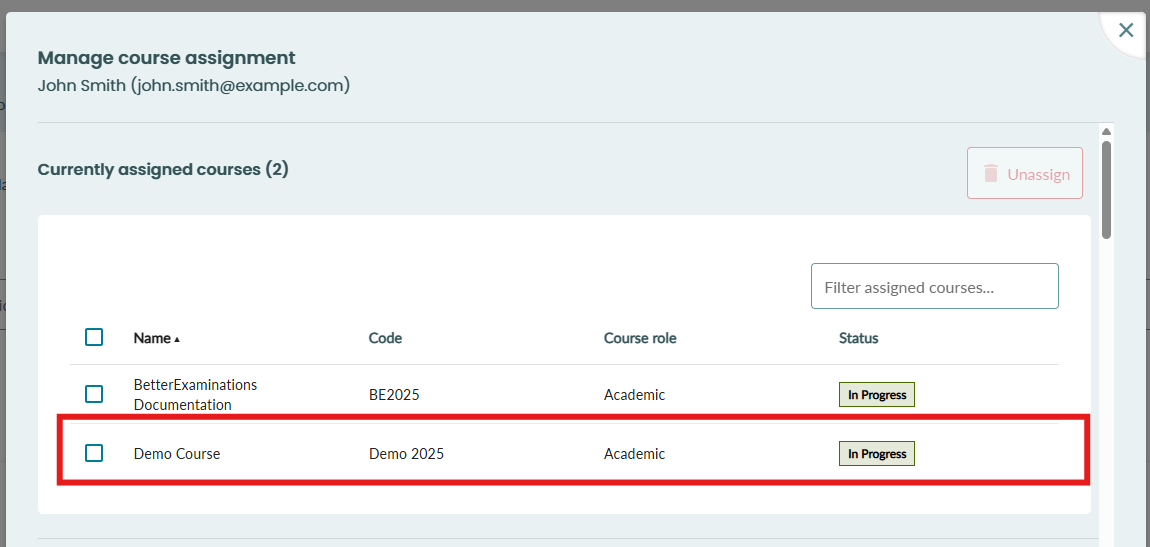
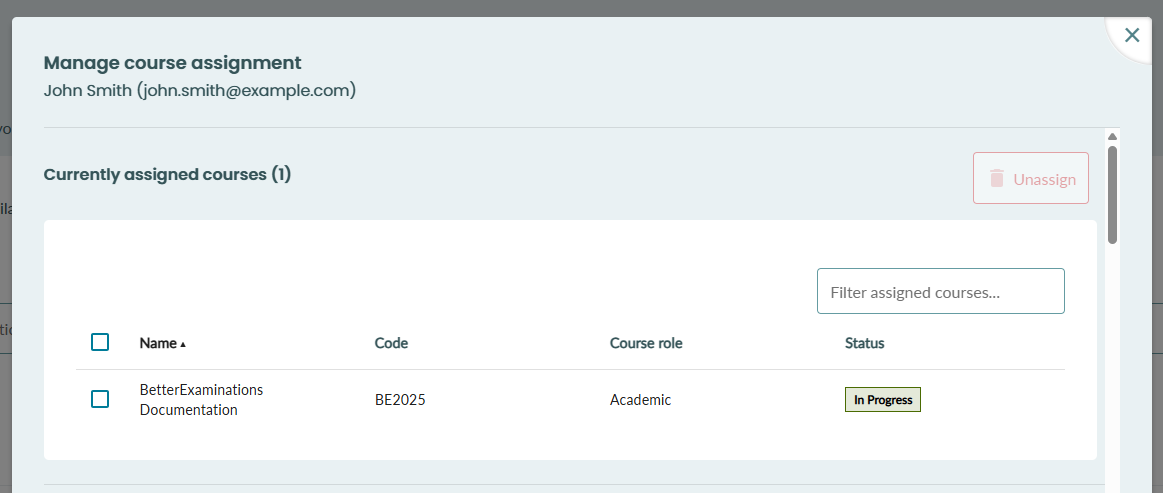
3. At the top of the popup, you will see the courses that the student is already assigned to.
If the user is not assigned to any courses, you will see this 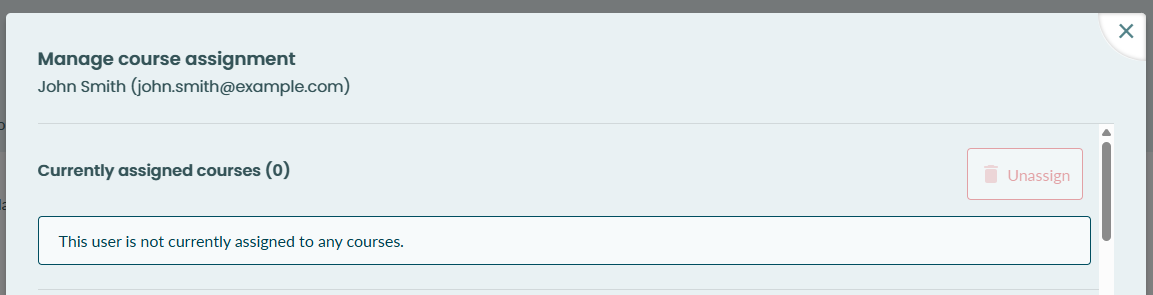
4. To unassign a user from one or more courses, select the course(s) from the table and select "unassign" 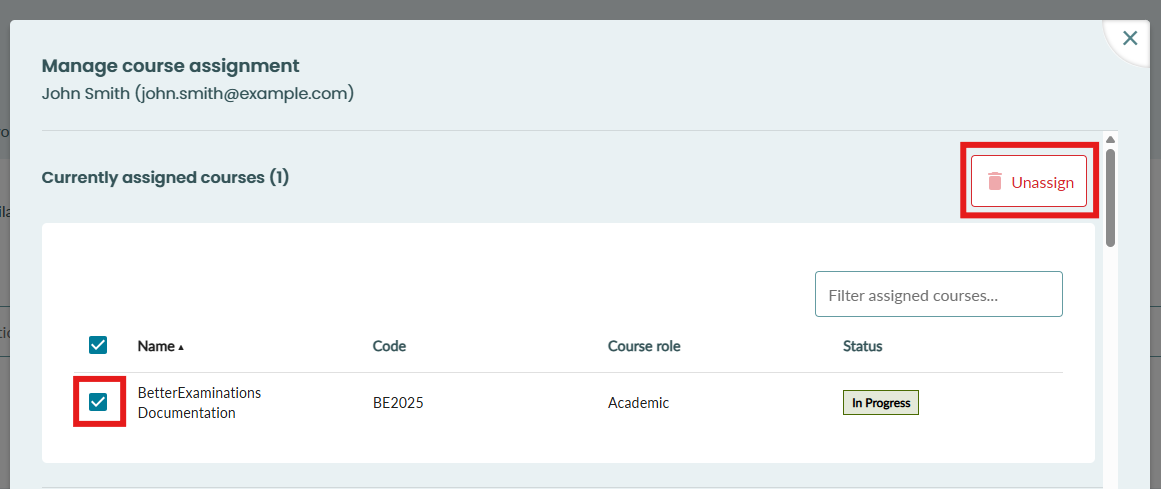
5. To assign the user to one or more courses, scroll down to the 'Assign additional courses' section. Here you will see the full list of courses in your organisation. You can filter the table and search for courses as normal.
Above the course list, you will see a dropdown where you can select a course role. When a course role is selected here, the user will be given this role in the newly assigned courses.
If a role is not selected, you will see a warning as below.
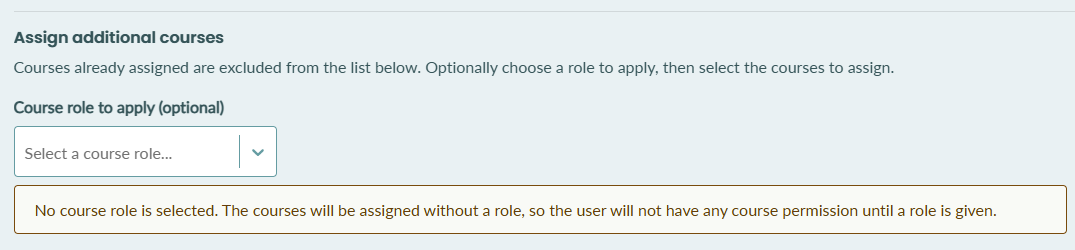
6. To assign the user to one or more courses, search for and select the courses from the table. Make sure the desired course role is selected.
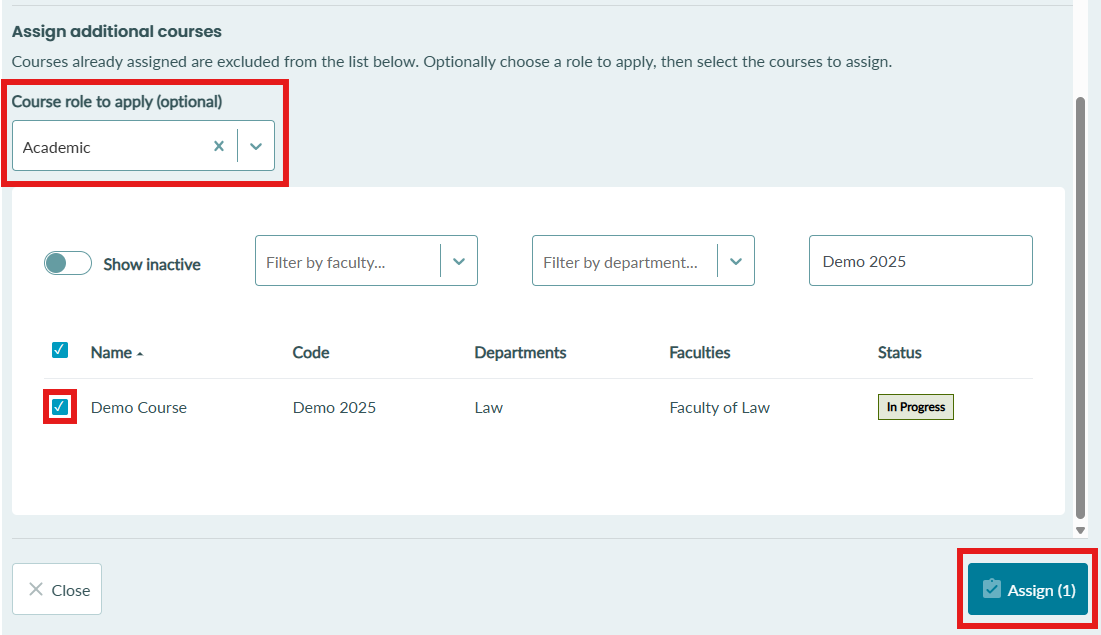
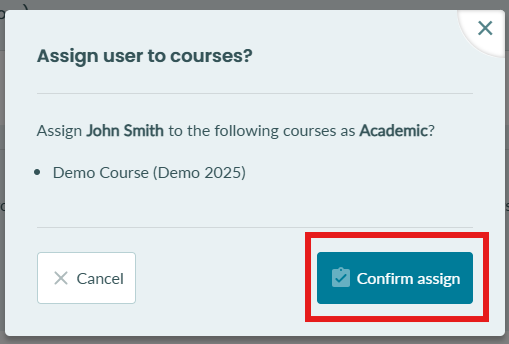
7. You will be asked to confirm
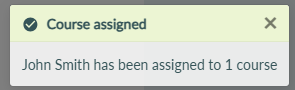
8. When the course(s) is successfully assigned, you will see the success message
9. The newly assigned course(s) will now appear in the first table of 'currently assigned courses'