
Downloading print-ready documents
How to download documents that have been approved for printing
What is the print jobs page?
The print jobs page is your central hub for managing exam documents that have been approved and submitted for printing. It shows you all documents across your courses/modules that are queued for download and printing, as well as documents you've already downloaded previously.
What you'll see on the page
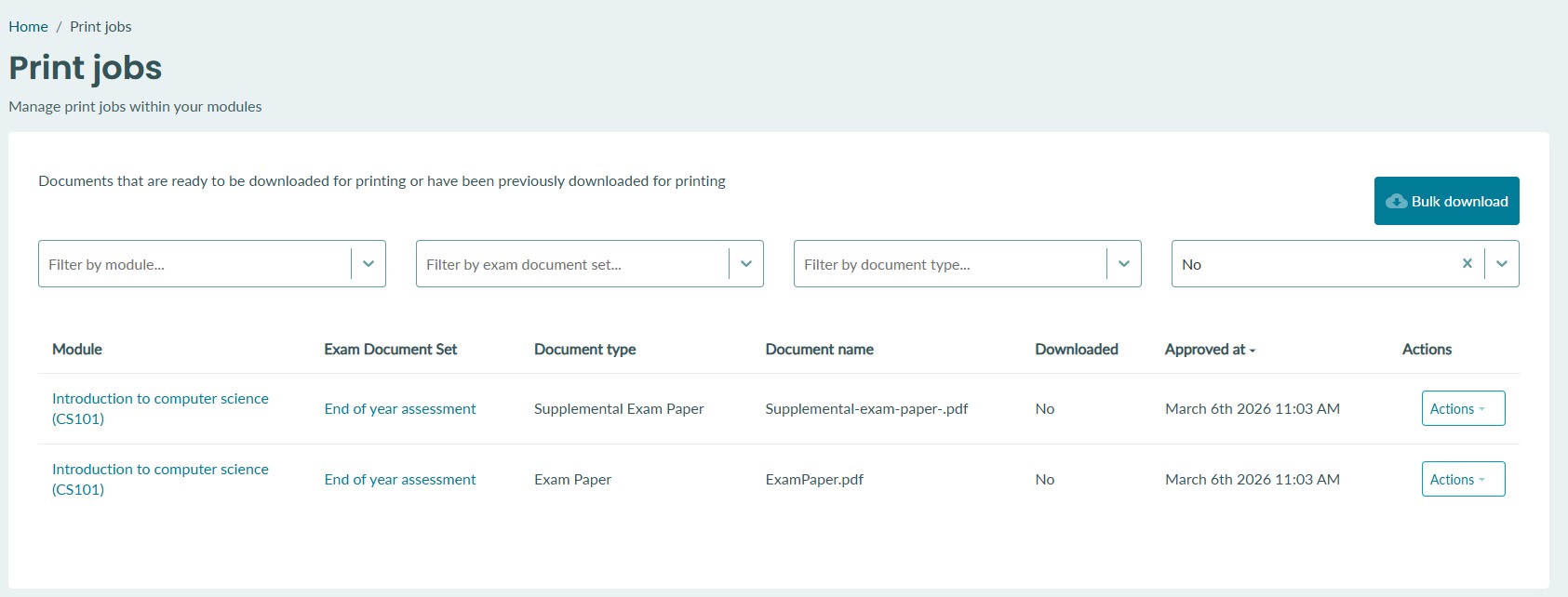
The page displays a table of print-ready documents with the following columns:
| Column | Description |
|---|---|
| Course/Module | The course/module the document belongs to. |
| Exam Document Set | The exam document set the file is part of. |
| Document Type | The type/folder the document was uploaded to (e.g., exam paper, marking scheme). |
| Document Name | The original file name. |
| Downloaded | Shows the date and time you downloaded the file, or "No" if it hasn't been downloaded yet. |
| Approved At | The date and time the document was approved for printing. |
| Actions | Download button for that individual document. |
Filtering the list
You can narrow down the list using four filters at the top of the table:
-
Course/Module - Show documents from a specific course/module only
-
Exam Document Set - Show documents from a specific exam document set only
-
Document Type - Show documents of a specific type/folder only
-
Downloaded — Filter by whether documents have been downloaded or not by you (defaults to "No" to show undownloaded documents first)
Filters can be combined. The list updates automatically when you change a filter. Depending on your organisation configuration, you may have other filters available to you in the print jobs page.
Downloading a single document
-
Find the document you want in the table
-
Click the Actions button on that row
-
Select Download
-
The file will download to your device
-
The Downloaded column for that row will update to show the current date and time
Bulk downloading documents
-
Apply any filters you want to narrow down the selection (optional)
-
Click the Bulk download button in the top right
-
A confirmation modal will appear showing any active filters
-
Click Generate download link
-
You'll receive an email with a download link once the files are packaged and ready
Note: The link generation processes in the background. You don't need to stay on the page - just check your email for the download link.
If you have filters applied when you click Bulk download, the modal will show you exactly which filters are active so you know what's included in the download.
Tips
-
The list defaults to showing not yet downloaded documents. Change the "Downloaded" filter to "Yes" to see previously downloaded documents, or clear the filter to see all.
-
The table is sorted by Approved At date by default (newest first). You can click the column header to change the sort order.
-
If the list is long, scroll to the bottom to load more documents.