
Uploading documents
How to add documents to an exam document set
Required documents
Your organisation may specify which documents are required for you to upload. When you open the exam document set, you will be informed which documents are required to upload. 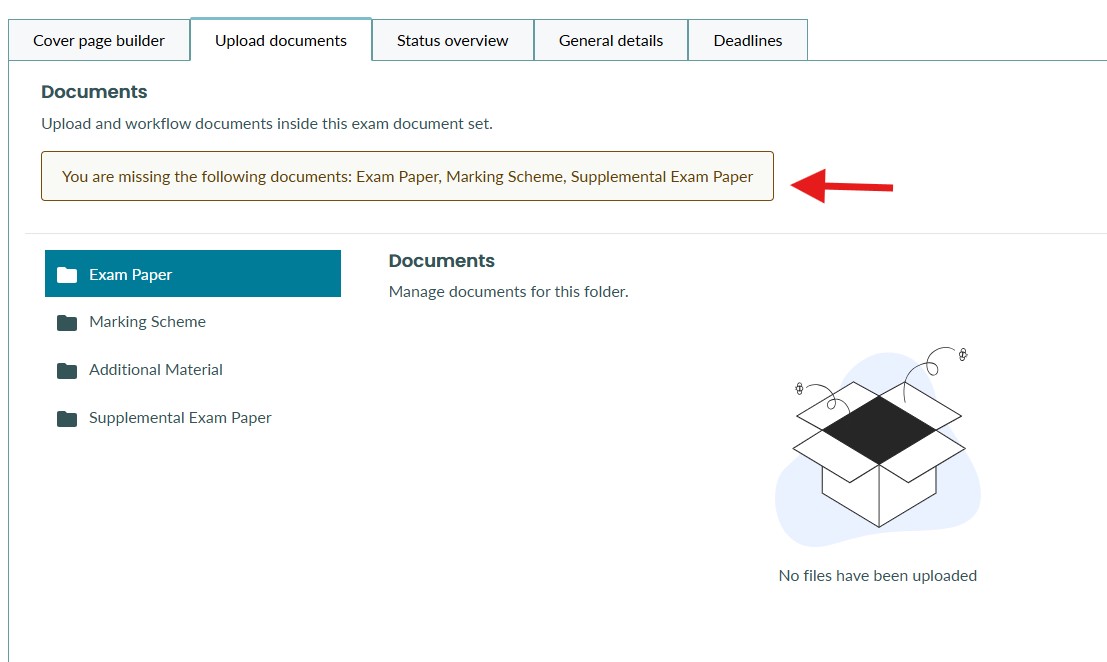
Uploading a new document to a folder
1. To upload a new file, select the destination folder on the left-hand side and select the 'Upload' button on the top right.
Note - Depending on your organisation's configuration, the folders displayed in the screenshot may differ from those displayed for you.
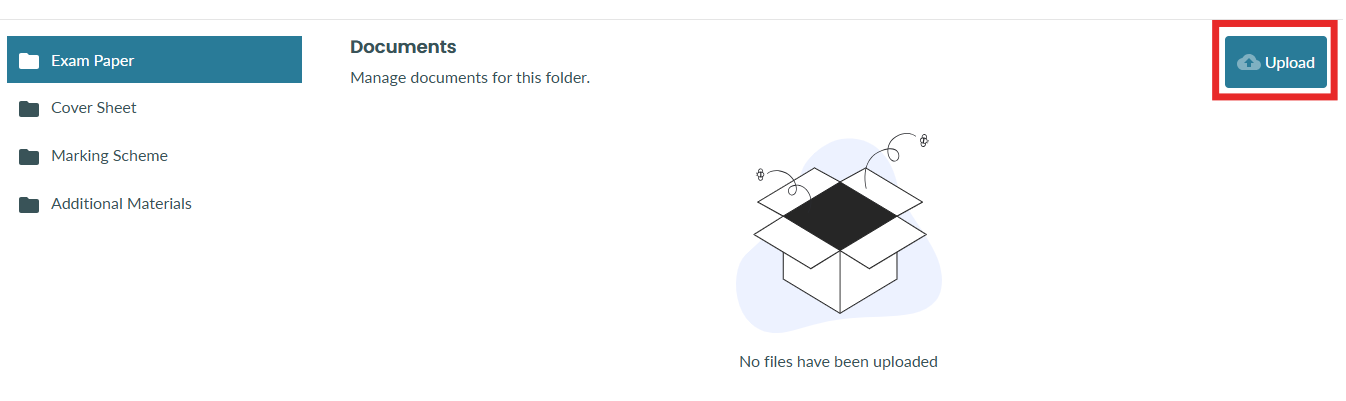
2. Note the accepted file types. You can either drag & drop your file into the upload section or click on the area to select a file. Your selected file will appear as shown below.
You can add an optional note alongside the upload, which will be visible in the document audit trail. 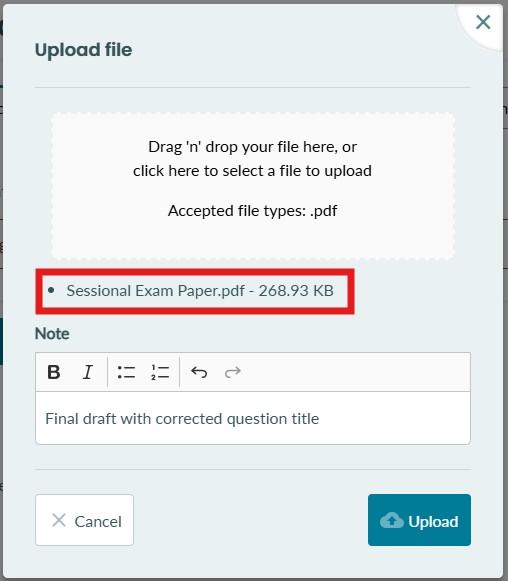
3. Select 'Upload' to start uploading your file. Once your file is finished uploading, it will now appear inside your exam document set.
Depending on your configured document workflow, the table columns may differ from the ones shown in the screenshot below.
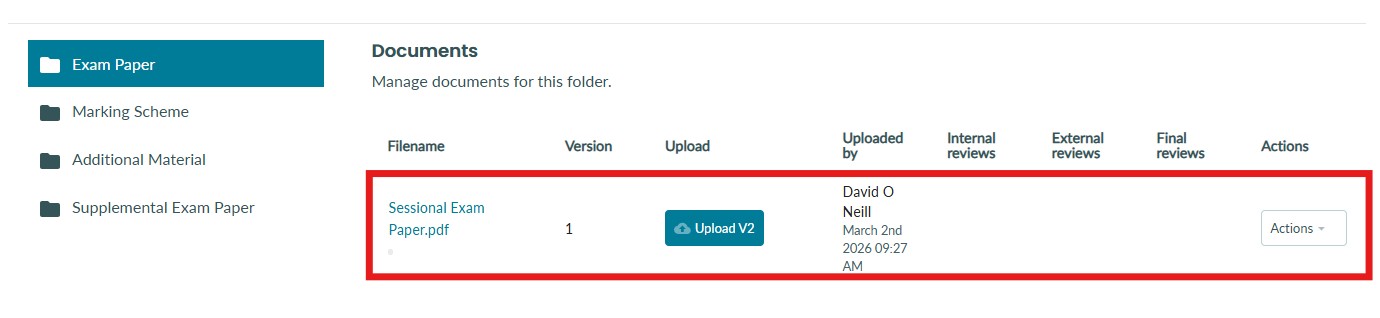
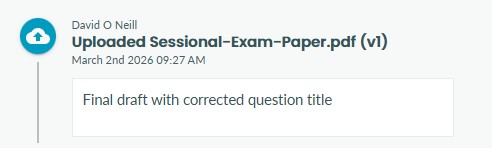
4. When a new document is uploaded, an entry to that document's audit trail is added to capture key information, as shown below. The note left when uploading the document is also visible here.
Document versions
When you upload a document to a folder inside a document set, BetterExaminations keeps a full version history of that document. No version is ever deleted - every upload is preserved.
The first time you upload an exam paper to a document set, it becomes Version 1 (V1) of that document.
If you later revise the paper and need to replace it, you upload the updated file as Version 2 (V2) of the same document. V1 is not deleted - both versions are stored, and V2 becomes the active version shown in the folder.
You can continue uploading new versions (V3, V4, and so on) as the document evolves through the workflow.
Why does this matter?
-
You always have a record of what the document looked like at every stage
-
Every version upload is recorded in the document's audit trail, including who uploaded it, when, and any note they added at the time.
How to upload a new version of a document
Select the destination folder on the left-hand side and locate the file you want to upload a new version of. Then, select 'Upload V2' (if it's the second version of the file)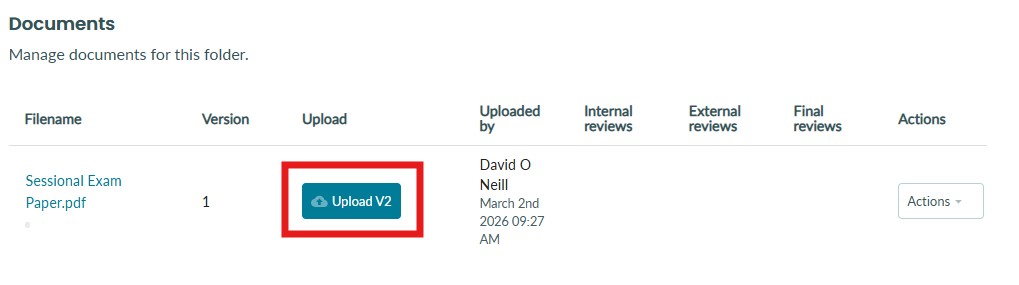
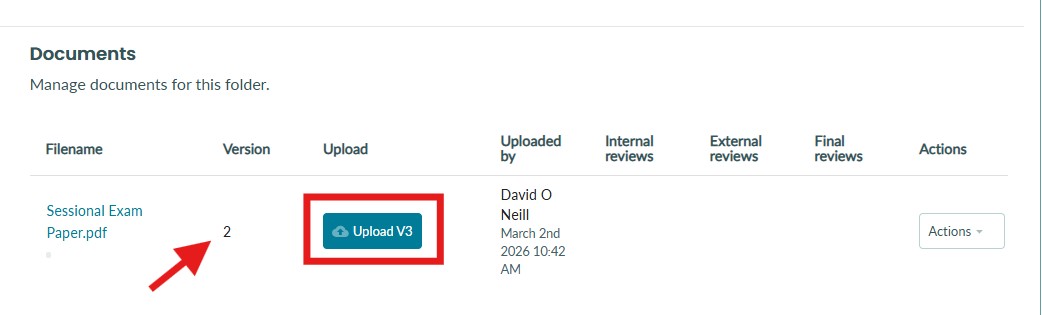
Once you've uploaded a new version of the file, the version number will update in the table as shown below.
Previewing different versions of documents
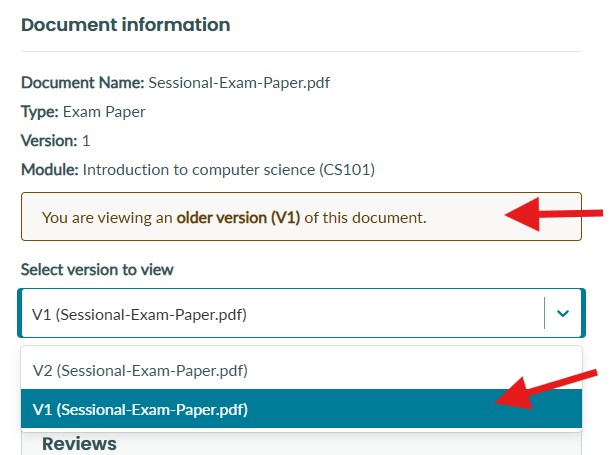
When you open a document inside the platform, you will see a document information section. This section shows the current version of the document. 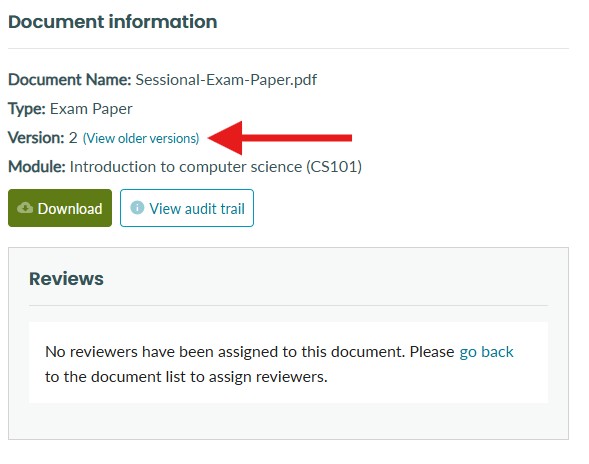
You can switch to view previous versions of documents by selecting 'View older versions' and selecting an older version of the document from the dropdown.
F.A.Q
Can I add more than one document to a folder?
This will depend on your organisation's configuration. If you feel you should be able to add more than one document to a folder, please contact your organisation for clarity.
What file types are supported?
When uploading new files, the accepted file types will be listed in the file upload section. In the case below, you can see that PDF and DOCX files are accepted. 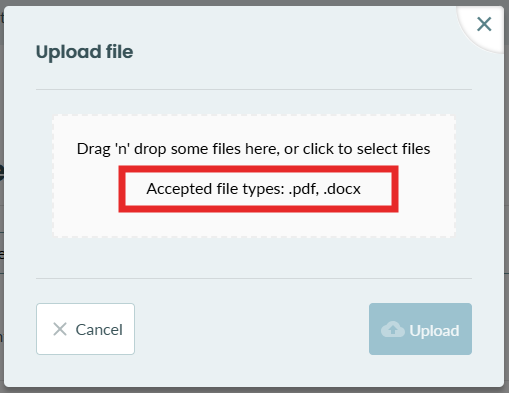
The supported file types will depend on your organisation and can be different depending on the folder you are uploading to. If you are trying to upload an unsupported document type, please contact your organisation for clarity on supported document types.