
Reviewing documents
How to review documents
Reviewing documents
When a reviewer logs into BetterExaminations, all documents assigned to them to review will appear in an easily accessible table.
Depending on the reviewer type and organisation workflow setup, documents will appear under different headings.
For example, an organisation with an internal review stage will see documents under 'Awaiting your internal review'. External reviewers will see 'Awaiting your external review' and so on.
This table will show all documents that are currently pending review from that reviewer. The reviewer can filter by course/module, document type, and search by text.
To review a specific document, the review sel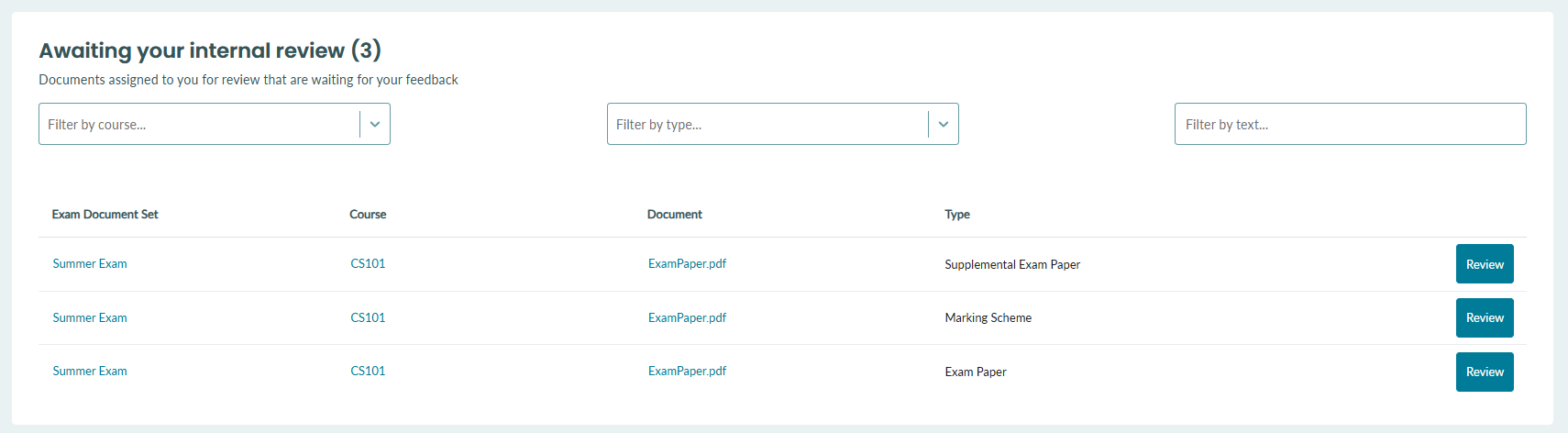 ects the review button to the right of the relevant document.
Submitting a review
When the reviewer lands on the document review page, they will be shown a preview of the document* and some document information such as the document name, document type, document version, etc.
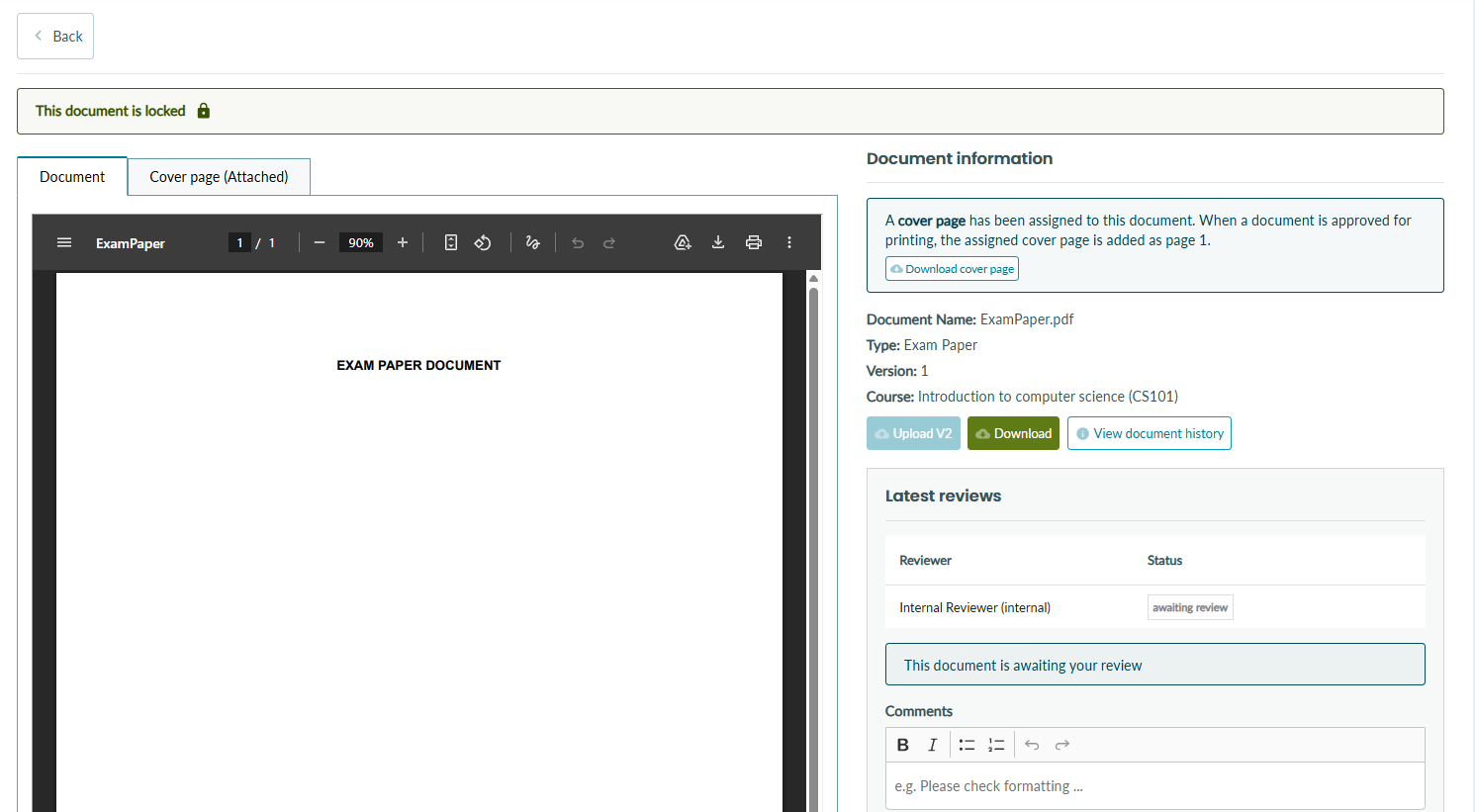
* Note - Preview is not available for all file types. In cases where a preview is not possible, reviewers will be instructed to download the file for review.
Previewing cover pages
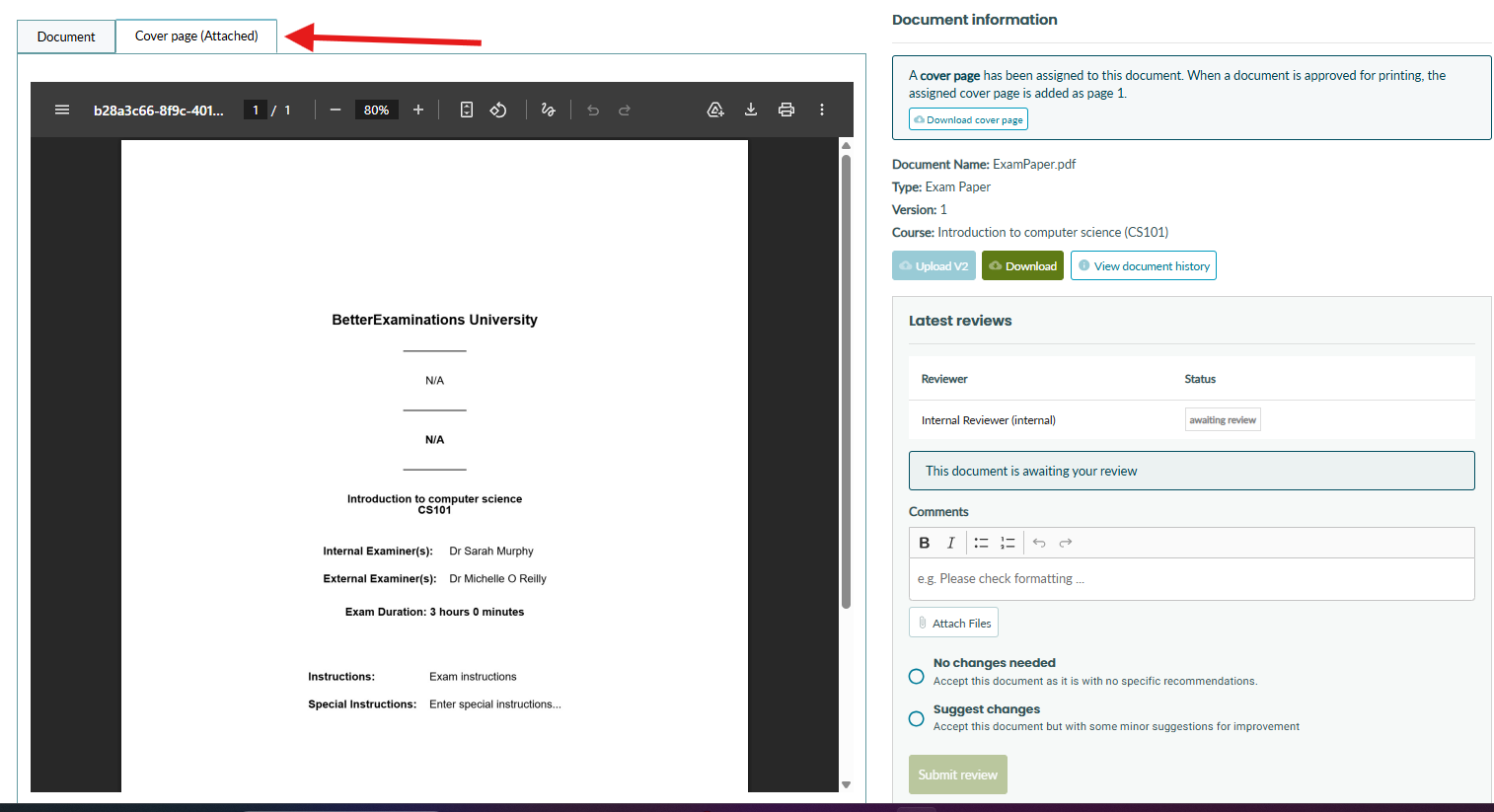
If you require a cover page to be attached to the exam document, the reviewer will be able to preview the generated cover page too by selecting the cover page tab.
Document history
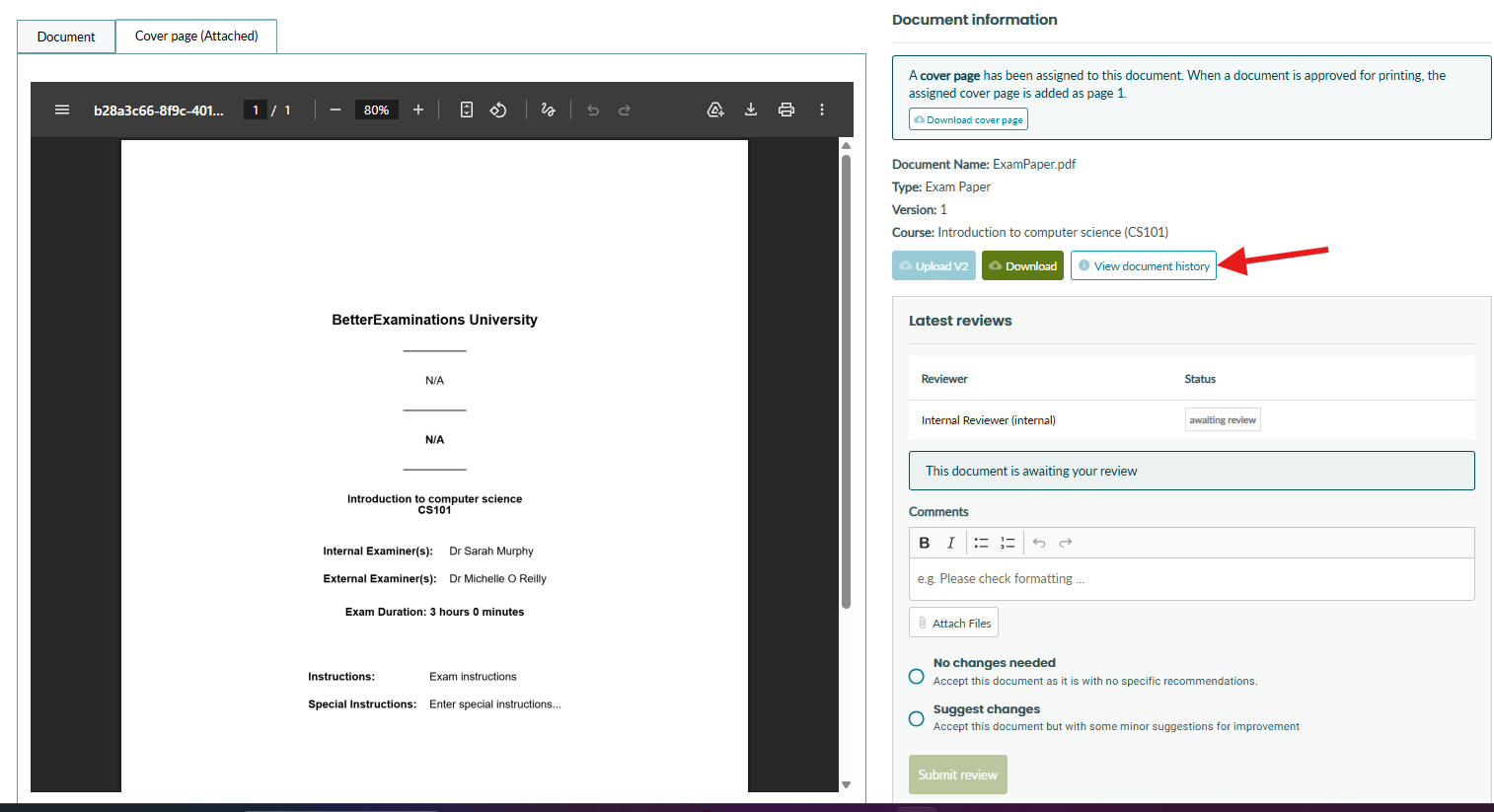
Reviewers can view the full document audit trail by selecting the 'View document history' button. You can read more about document history here.
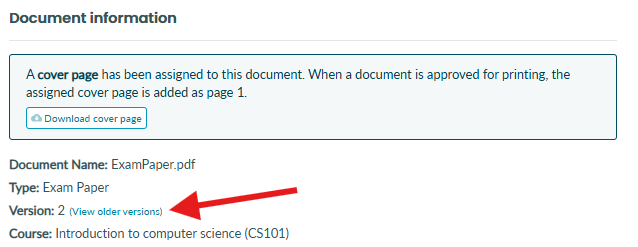
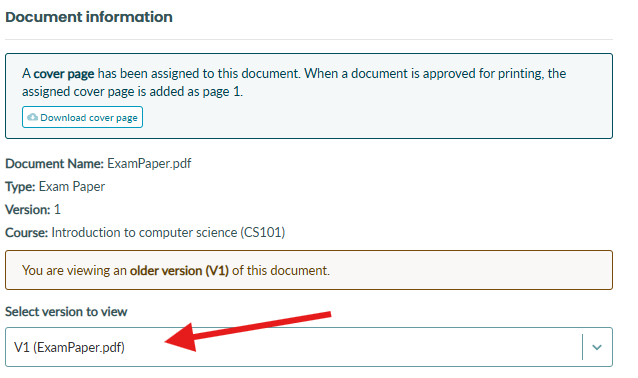
Reviewers can see a full history of preview document versions. A reviewer can switch to view previous versions of documents by selecting 'View older versions' and selecting an older version of the document from the dropdown.
Submitting a document review
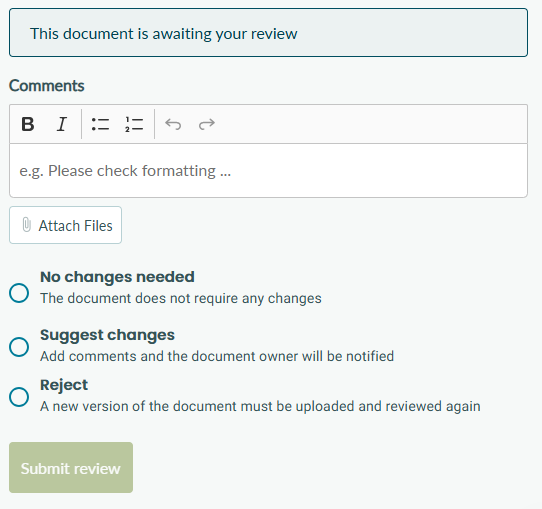
To submit a review, the user must select one of the review options.
The reviewer can leave a comment (optional).
The reviewer can attach one or more files to their review. This is particularly useful if the reviewer wants to leave inline comments on a document for the author.
Review options
Note - Review options may differ depending on your organisation.
Approved
You are happy with this document and do not require the uploader to apply any changes.
Suggested changes
You have some comments and suggested improvements but they are not required changes
Reject
Explicitly reject the document and ask for a new version to be reuploaded
Viewing submitted reviews
When a reviewer has submitted a review, it will appear on their dashboard in the 'Recently submitted reviews' widget. This widget will show reviews submitted in the last 3 months.
The reviewer can see the review left on this document by click 'View'
