
How to distribute submissions across multiple markers
Automatically distribute submissions to selected markers based on defined percentages
Overview
For large exam cohorts, you can assign multiple markers to a sitting and automatically distribute submissions to each marker based on defined percentages. This helps balance workloads and scale marking efficiently across larger teams.
When distributing submissions, the user selects which markers to include and assigns a percentage of submissions to each. Based on these percentages, the system allocates specific submissions so markers can see which submissions they are responsible for.
Permission notice: To manage marking options, you must have the 'Modify course settings' permission.
How to distribute submissions across markers
Video Tutorial
1. Navigate to the exam sitting
3. Select the Marking options tab 
3. Toggle edit mode.
4. Toggle Assign markers.
5. Select the Distribute submissions to markers (selected by default)
6. Click Distribute submissions.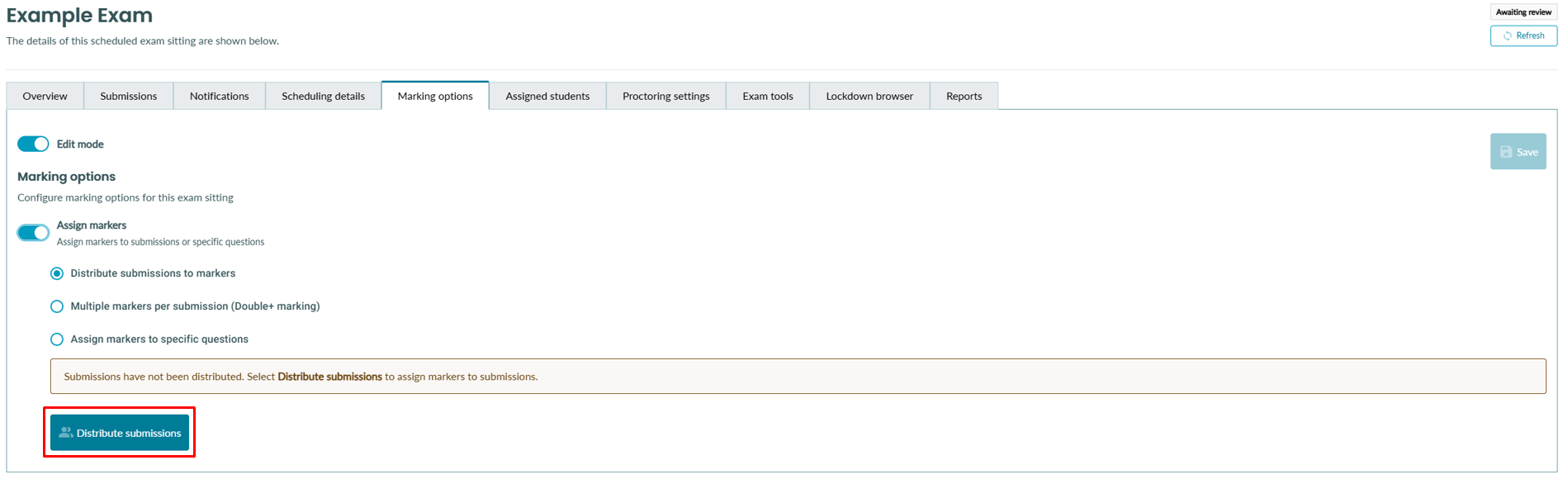
7. Select one or more markers and assign a percentage of submissions to each selected marker.
In order for a user to appear as an option when selecting a marker, they must have permission to mark exams on that course.
Note: The total percentage must equal 100%. You cannot continue if the total does not equal 100%.
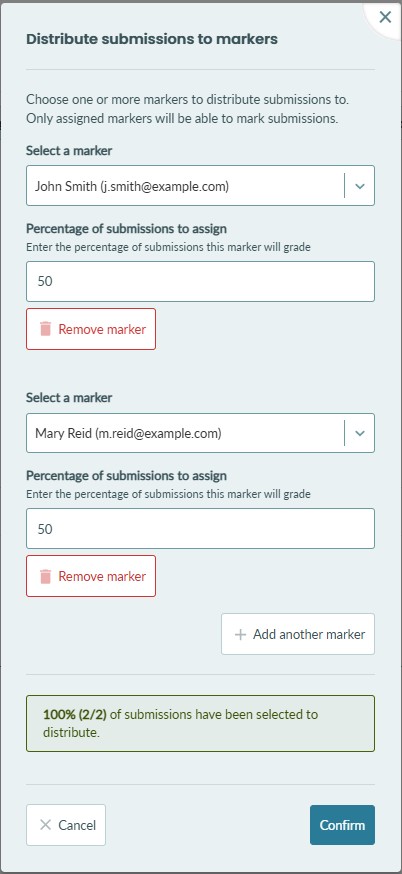
8. Click Confirm to distribute the submissions.
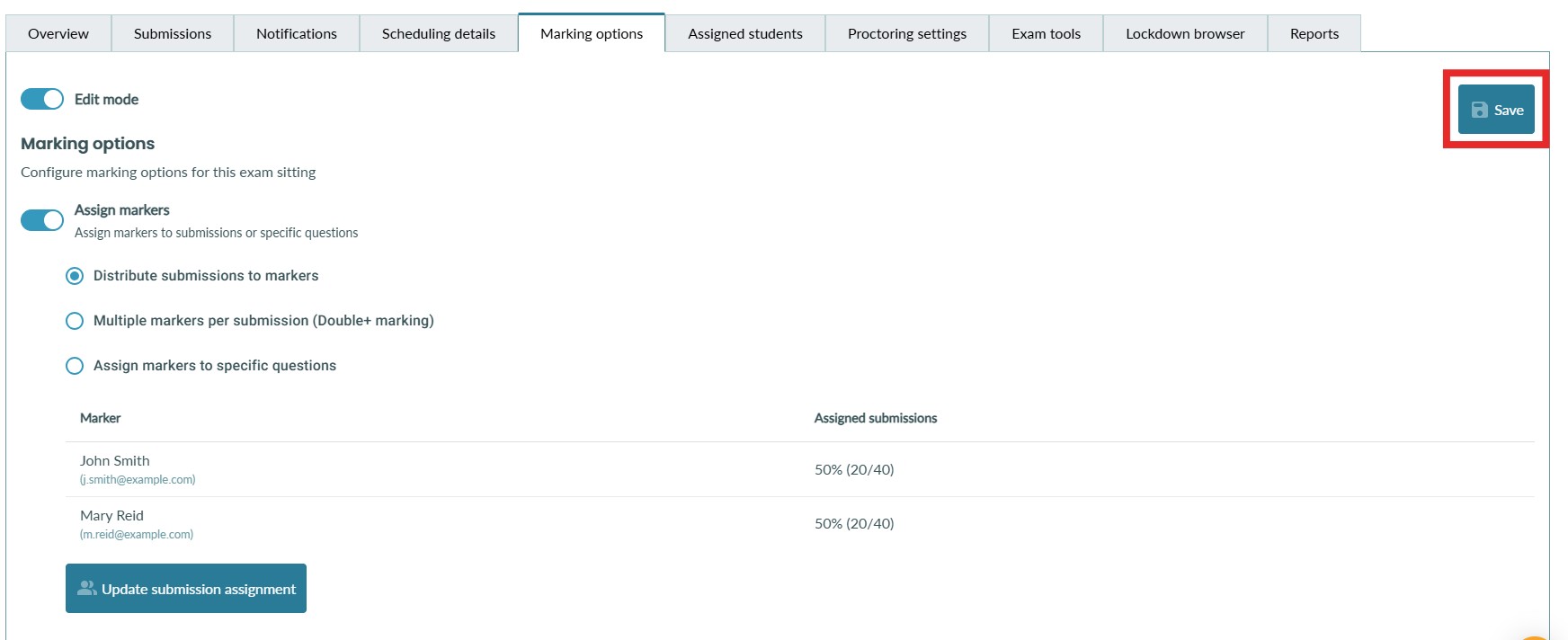
9. You will now see a table showing a breakdown of each marker and the number of submissions they have been assigned.
Remember to click Save to save the new marking settings.
Updating assigned markers or distributions
At any point during or before the marking process, you may need to swap out markers or change the distribution of submissions.
If removing/swapping a marker
Progress (scores, feedback, etc.) by the marker will NOT be removed, but their submissions will be redistributed. The new marker can either update their scores (if necessary) or leave them as is.
If adding a new marker
- Submissions that other markers have already started marking will not be included in the new distribution. They will remain assigned to them. All other submissions will be considered for distribution.
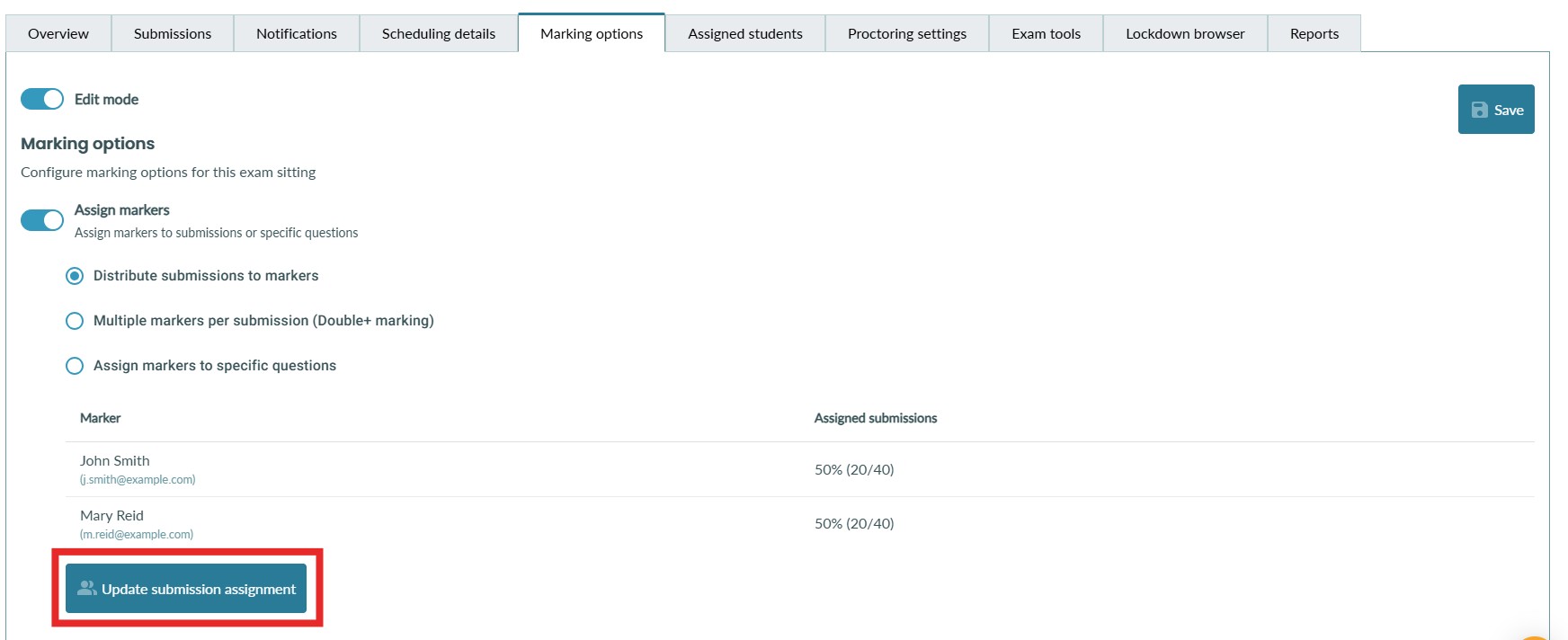
To make updates to the distribution of submissions, navigate to the exam sitting marking options and select 'Update submission assignment.'
Marker's perspective
When a marker views the submissions list, by default, they will only see the submissions they are assigned to. They can track their progress and work through submissions this way.
They have the option of using the filter to view submissions assigned to other markers, too. This allows for scenarios where a marker may have an assistant marker and wants to track their progress. 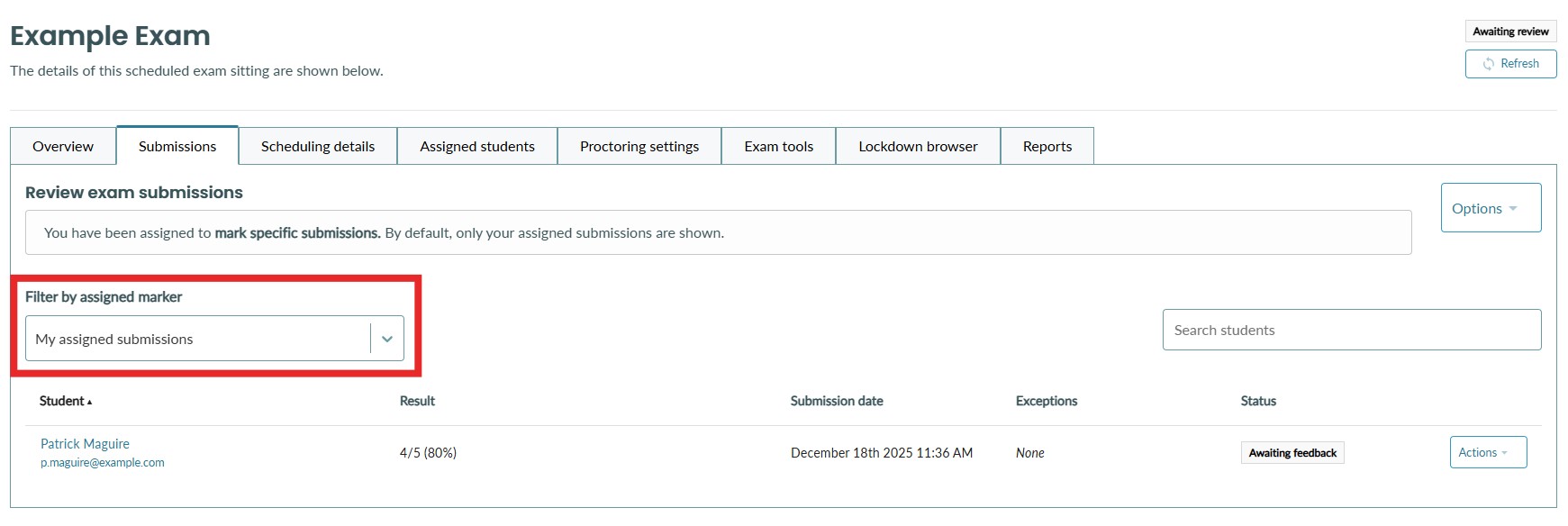
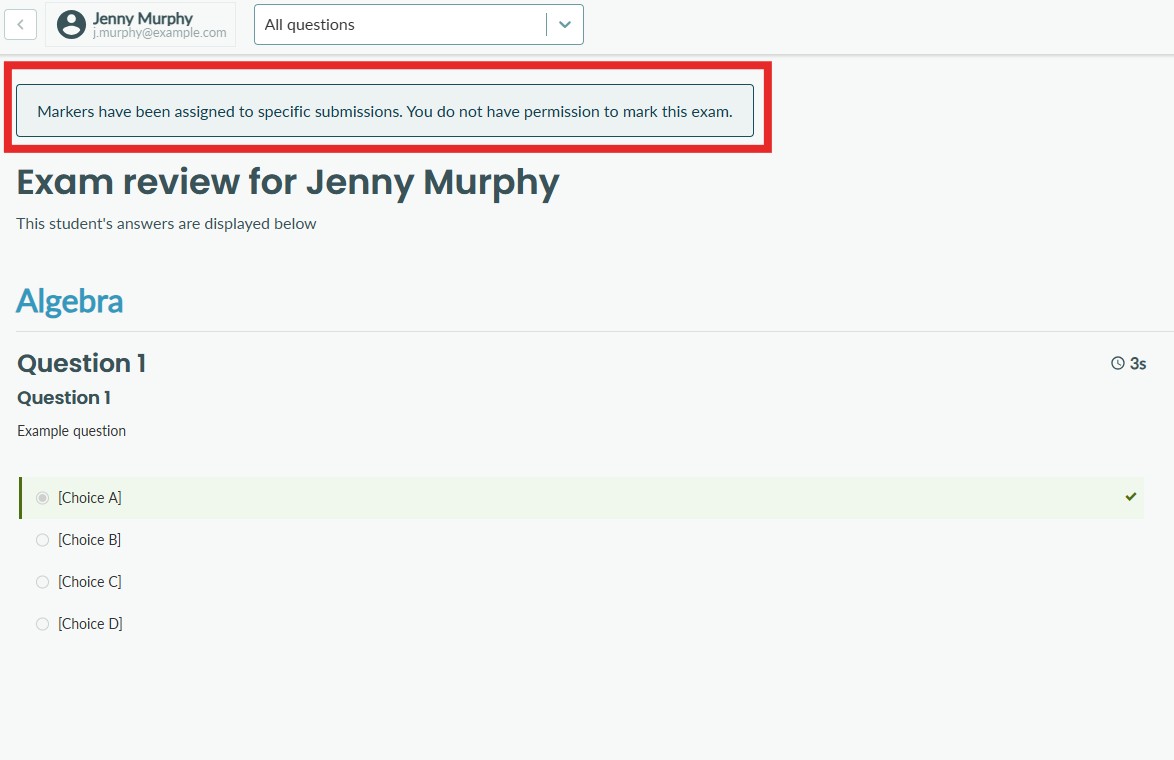
Markers will only have permission to mark submissions that are assigned to them. They can view other submissions but cannot mark them.
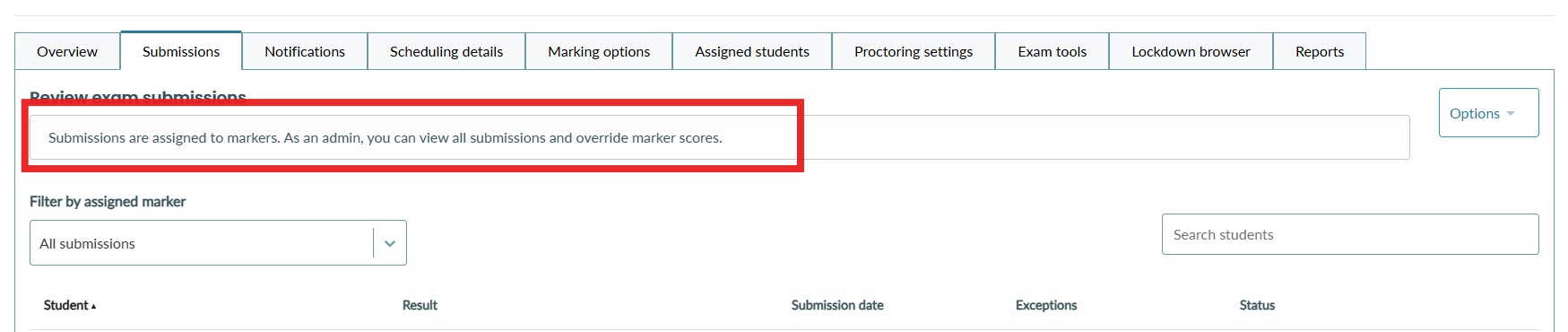
Course administrators will still have the power to override any scores given by markers, regardless of who is assigned to the submission.
Other Notes
- There is no limit to the number of markers that can be selected.
- Submissions are distributed randomly.
- Some markers may receive more submissions than others due to rounding.
- Users do not control how individual submissions are allocated.
- If the students assigned to an exam sitting change, submissions are automatically redistributed to handle those changes.