Image Annotation Upload
With Image Annotation Upload, students to upload and annotate an image
Description
This Question Type allows students to upload and annotate an image. The question can be used in two ways:
- using an annotation tool to add response boxes and label the image that has been uploaded by the author. This can be auto scored.
- ask students to upload an image directly from their machine and use the annotation tool to place and label the response areas. In this case, the question cannot be auto scored
Create a question
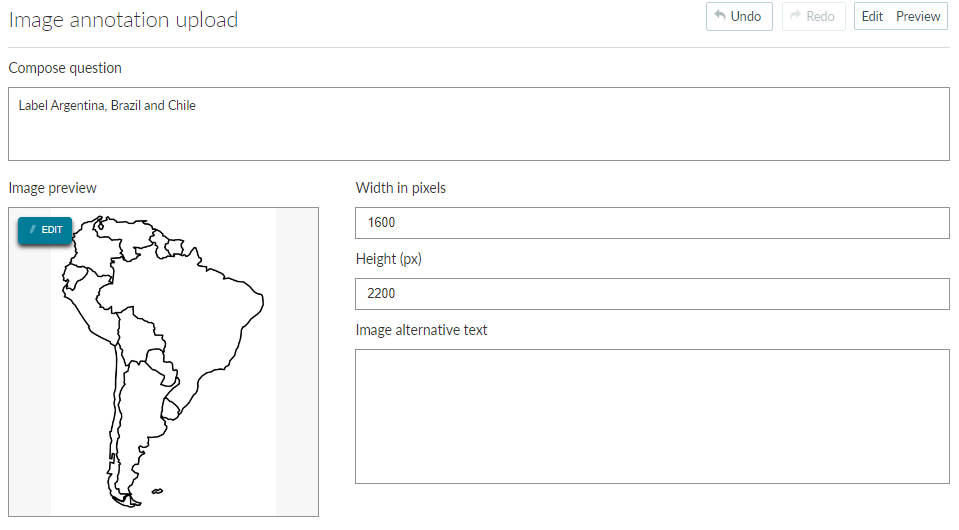
After entering the question stem in the Compose question field, no additional steps are required if an image is to be uploaded by the students. You can make styling changes in the Formatting pane and save the question.
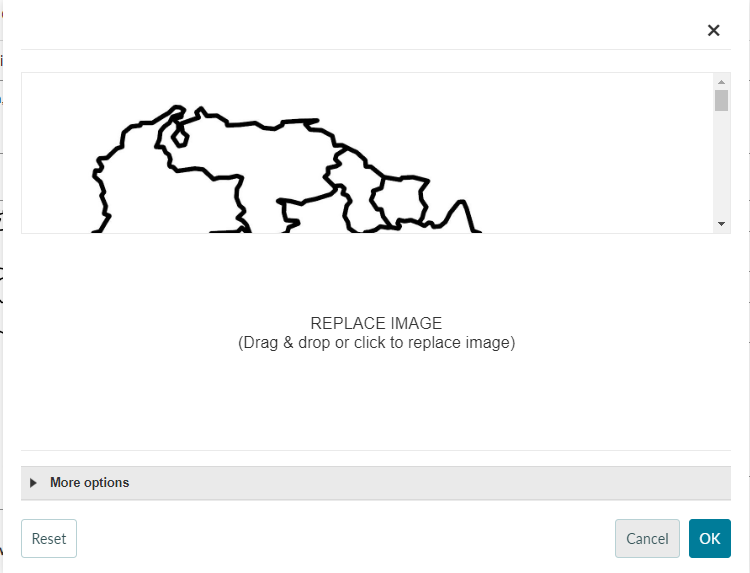
A Question author can upload an image by selecting the Edit button overlaid on the image preview:

A display width and height (in pixels) can be added as well as alt text to help describe the image for users with assistive technology like screen readers.
Adding an annotation area
An author can drag a polygonal annotation area around a section of the image. When an annotation area is drawn a valid response for the area can be added:

Multiple annotation areas can be drawn.
Adding valid responses
When the annotation area is drawn the student can add an annotation label. With "Show answers" enabled the label changes to a valid response (green) when it's over the annotation area:

Draw as many annotation areas as you need.
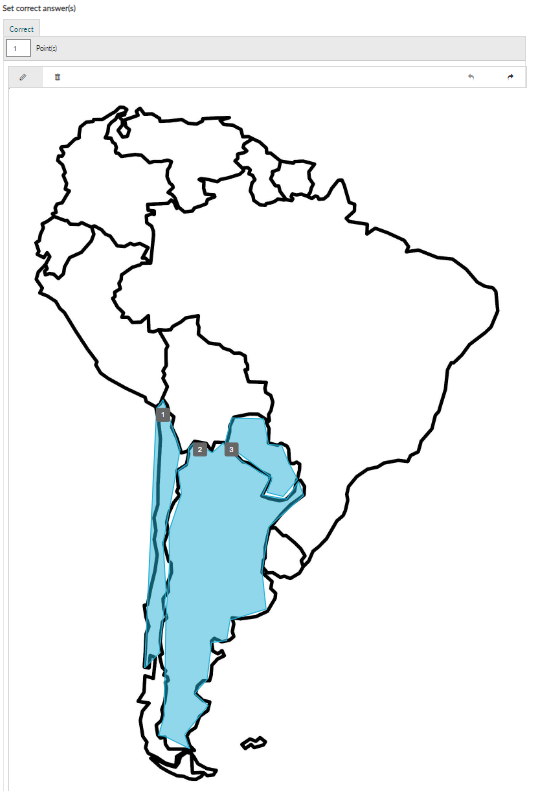
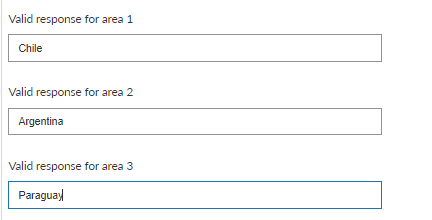
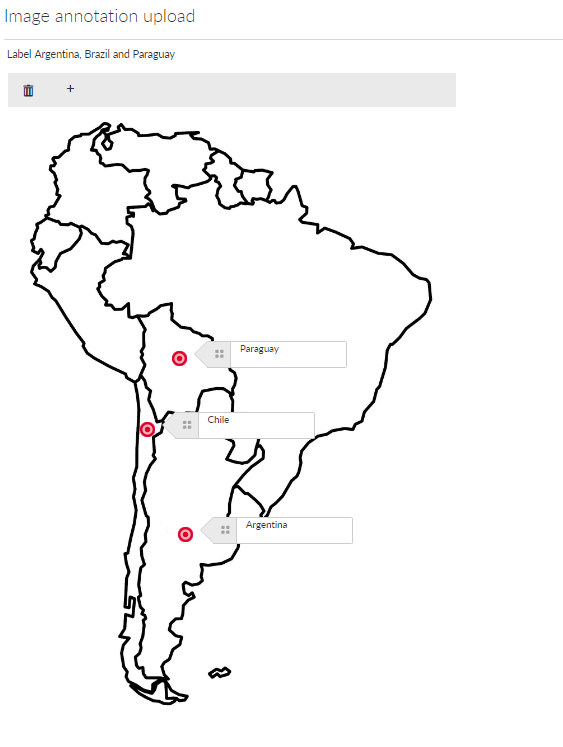
The question will be marked as correct if the student types the correct answers in the response boxes and places them correctly on the respective areas as shown below:
More options
Scoring type
Learn more on the scoring overview page.
Insert a value in the Score field to set up a mark for the question and select one of the following scoring types:
- Exact Match - Student must answer all parts of the question correctly to receive a mark.
- Partial Match Per Response - Each response will be awarded an individual score.
- Partial Match - Each response will be scored individually and the overall question score will be divided between responses.