Hotspot
The Hotspot question type allows the author to upload an image and outline target regions (hotspots) within the image, for validation.
The Hotspot question type allows the author to upload an image and outline target regions (hotspots) within the image, for validation. Students will be able to click on the target region(s) to input a response.
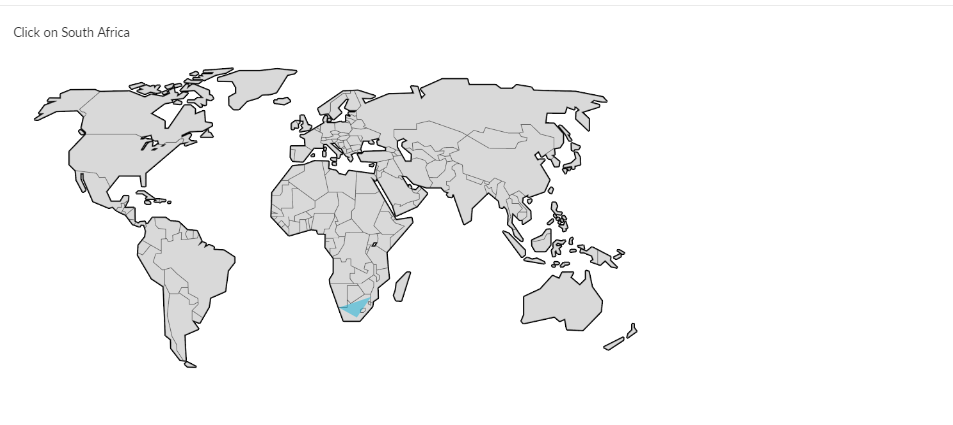
Create a question
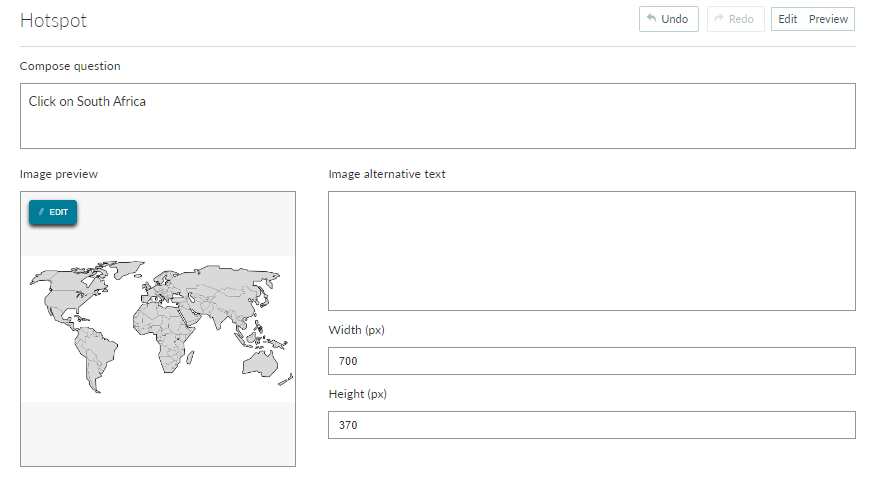
Enter the question stem into the Compose question area. Below you will see the Stimulus Image section. Paste a link to the image in the Source URL field. Define the image width and height in pixels. See the example below.
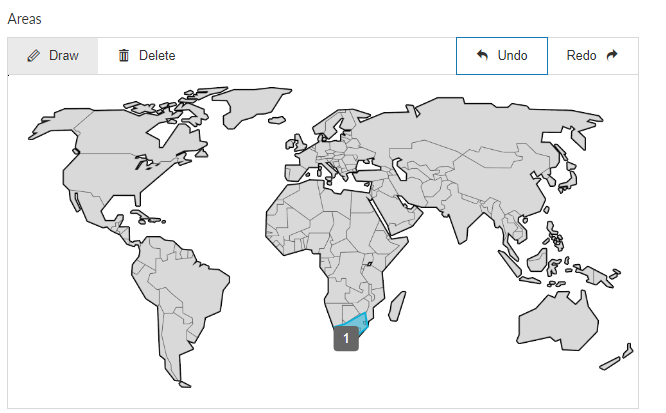
The uploaded image is visible in the Areas section. Here, response options are defined for the student by outlining the required shapes. You can create as many outlines as needed (see the example below). To remove an existing area, switch from Draw to Delete mode and click on the area once. You can also use Undo and Redo options in the toolbar above the image.
You can now configure validation for your question. Follow these steps to set up scoring and the correct response:
- Insert a value in the Point(s) box to set up a mark for the question. The default value is 1.
- In the Correct tab, you will see a copy of the question with the drop zones rendered. To set the correct answer just simply select the hotspot area which is the correct answer.
- If there is more than one correct response, enable the Multiple Responses option and select the additional hotspot areas which you wish to be additional correct responses.
- Hotspot is only scored with the Exact match scoring logic.
Area attributes
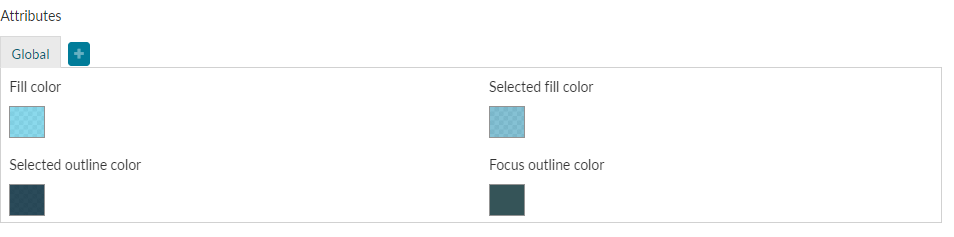
In this section, you can configure colors for the hotspot areas. Area attributes can be set either globally (applied for all areas) or individually (applied only to specific areas).
Authors can select various characteristics such as fill, stroke colors, and opacity using the color picker tool. The options "Selected fill color" and "Selected outline color" will be shown for areas that the user has selected, either by clicking, tapping or using keyboard/tab controls.
When setting individual attributes, a text label can also be defined. Labels will not be visible for the students but may be useful when reviewing student responses. See the example below: